Pages

Showing posts with label iphone. Show all posts

Monday, August 31, 2015

Save The Date: Enterprise File Sync and Share is Just the Beginning of a New Way To Work

View Comments
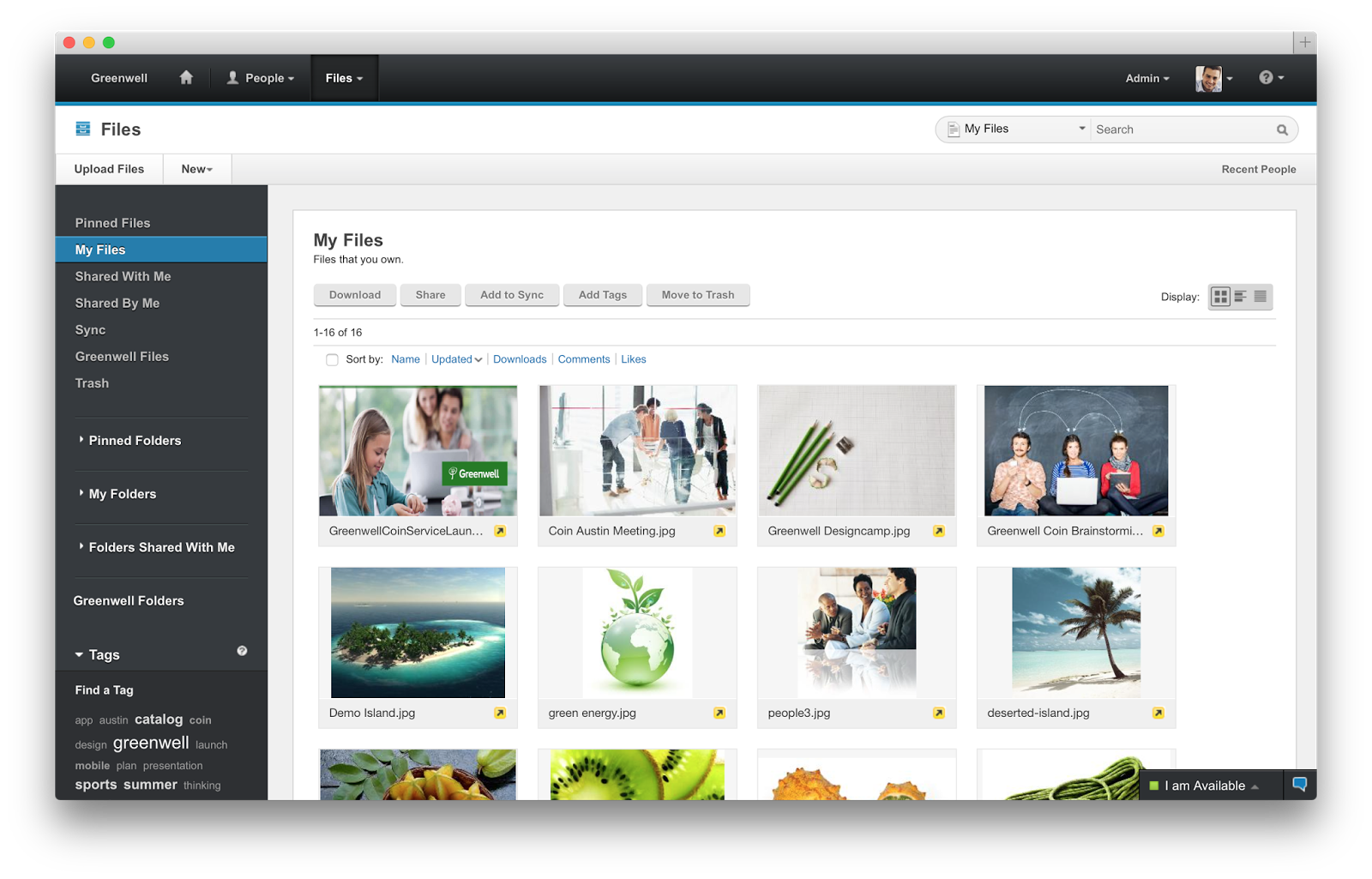
Save the date. In less than a month, we'll be hosting a webinar to take you through the latest capabilities available in our IBM Connections Files offering, the IBM solution for organizations that are looking for enterprise file sync and share (EFSS) capabilities in the cloud.


IBM Connections Files on Cloud is designed for today’s mobile worker, providing a secure, easy-to-use, collaboration and file management environment for all size businesses. This cost-effective, secure file sharing solution is easy to implement using software-as-a-service (SaaS) on our cloud (or you can run it on-prem too). A user centric design allows anyone to confidently share files with their network of customers and partners, as well as sync online files to their favorite mobile devices and tablets (supports both Android and iOS mobile devices). Here's a quick video I had shared earlier of the IBM Connections for Mac app:


Ready to learn more? One of the Product Managers for IBM Connections, Jim Puckett, will be hosting a webcast. Check out the details below:

Date: September 24, 2015
Time: 1-2pm Eastern Time
Registration:  To register for the event, click here.

See you there!

Tuesday, May 5, 2015

IBM Connections Adds Secure File Sync and Share Offering On-premises

View Comments
Following the release last quarter of our secure file sync and share offering in cloud, today we have just released the equivalent offering for those customers who would like to deploy this on premises. This new offering gives customers a new way to buy IBM Connections and get just the Files portion of the platform. This makes it easy to get started and customers can grow and buy the entire IBM Connections suite once they are ready to use other capabilities such as Communities, Forums, Ideation, etc.

The capabilities have already been highly praised by analysts such as Forrester and OVUM. In fact, check out this report from OVUM to find out why IBM Connections is a strong candidate to provide all the benefits and features an enterprise user might need from a file sync and share solution.

This offering includes:
  • Mobile apps for iOS and Android
  • Desktop plugins for Microsoft Windows and Mac (including integration into Microsoft Office 365 Desktop apps such as Word, PowerPoint, Outlook and Excel)
  • External file sharing (ie. share files with people outside of your organization)
  • Share files with individuals or groups
  • Lock files for editing to prevent conflicts
  • View files online without having to download
  • Control who can view/edit your files and who can re-share them 
  • View who has downloaded your files and which version they have
  • See how the file has been shared throughout your organization
  • and more... ! 
Available add-ons:
  • Compliance and Governance support 
  • Real-time co-editing of files without downloading 
Here's a demo of the plugins and mobile apps in action:


Enjoy!

Tuesday, August 19, 2014

Mobile Comparison of IBM Connections & Yammer

View Comments
I typically get questions about how collaboration platforms compare, especially in a post-PC, mobile first era. The term was made popular by Steve Jobs in 2007 (though first coined at MIT), and 3 months ago Microsoft CEO said the company had entered the post-PC era. So mobile.. a critical capability. Can't be without it. It's essential.

So here we are in 2014 -- a post-PC / Mobile First era, so let's take a look at comparing the mobile collaboration capabilities provided by IBM, with their market leading enterprise social collaboration platform called Connections, and Microsoft with a confusing story around SharePoint/Office 365/Yammer.

To that end, I wanted to share a video that one of my colleagues, Reynout van Adrichem Boogaert, put together. It's a bit long because it does an amazing job at taking an in-depth look at collaborating while on the go -- a must for today's workforce.

Of course, we can always look at app store ratings (Yammer has 3/5 stars in the app store, while the IBM Connections mobile app has 4.5/5 stars) which gives one angle, but let's get the full story.

The video starts with a description of what the Yammer app can do and can't do.


Now, what if you are in a situation where your company has made a decision to use some Microsoft technology?  Well, another one of my colleagues has you covered.  Omar Davison recently shared this video (you may have seen Suzanne Livingston's post last week) which tells the story of how you can use IBM Connections to enhance your Microsoft SharePoint and Microsoft Office tools.

Here's the 3 minute video:


Ready to get started? Don't wait, start a free trial now (no credit card required)!


Wednesday, June 18, 2014

A Little About IBM Connections 5.0 and File Sync

View Comments
Now that we have officially announced IBM Connections 5.0 I wanted to take some time and talk about one of the top new features in this release: enterprise file sync and share. Also, if you haven't seen it yet, check out Suzanne Livingston's blog from yesterday where she talks about the new external collaboration features of IBM Connections 5.0. This is a capability that we've had available in our cloud for a while and now we are making it available to our on-prem customers.

IBM Connections has already been cited by Forrester as a Leader in their Enterprise File Sync and Share Wave and IDC has stated that when it comes to marketshare, IBM Connections leads the way.

So back to File Sync.  As you can see from the screenshot in the right, when you install the latest IBM Connections Desktop Plug-Ins (which will be available for download in a couple of days) a new Sync folder will be created under Favorites.

There you can save files directly to IBM Connections and use Connections as your personal backup drive where everything is sync'ed automatically (including of course edits that you make offline).

Another added benefit and differentiator is that right from within your desktop you can right click on a file and act upon it. In other words, you can comment on it, tag it, like it, lock it (to prevent others from editing while you are offline) and even share it with other colleagues without ever having to open a browser.  By default, all files are marked as private and only you have access to them. From there you can choose to share with individuals, groups, or communities.

On the mobile side, you can use our native apps for Android and iOS and sync files to your favorite mobile device/tablet. On each device you can manually specify which files you want to have available there. For example, you may want some key presentations on your iPhone, while you have documents, spreadsheets and other assets available in your iPad.

Here's a quick 5 minute demo that shows the enterprise file sharing and sync capabilities of IBM Connections 5.0.


If you are an on-prem customer, get ready to download the code next week! Stay tuned for other new features in the coming days.

Monday, May 19, 2014

IBM Connections in the Cloud and Mobile Apps Have Been Updated

View Comments
This was an extremely busy for us for sure.  On Friday, my colleague, Baan Slavens announced the latest release of the IBM Connections Mobile app. And a few hours later our multi-tenant deployment of IBM Connections in the cloud was updated as well with the latest and greatest code.  The timing couldn't have been better!

And speaking of timing, we are just 2 days away from the May 21st webcast where we will be unveiling IBM Connections Next.  If you haven't registered yet, go ahead and register now and invite your friends, family, customers, partners, colleagues and everyone else.

So let's start with mobile.  I had given a quick preview of the new mobile app a couple of weeks ago in this teaser that I created.  The reaction over the weekend has been tremendous in the various social networks. I've captured a snapshot of the reactions below:


So go check out the new mobile app that's probably already updated in your device, or just go to the app stores and get it from there ( iOS or Android ).

And what did we do in our cloud? Well, you can see what's new in this presentation that I prepared below:


Now in the next couple of weeks, we'll take the code that's already in the cloud today, make a few adjustments and ship it to customers who would like to run this on-prem as IBM Connections Next.  See you on the May 21st webcast for IBM Connections Next!

Wednesday, April 9, 2014

How To Build a Hello World App for IBM Connections

View Comments
Work is quickly ramping up as the product management team is working on the go to market activities for IBM Connections "Next". For example, yesterday I was working on updating the current IBM Connections Reviewer's Guide with information about the new release.  I also submitted two abstracts for the upcoming Social Connections VI user group meeting, which I hope get selected, but more on that later!

In case you don't know by now, my background is in app development and I wanted to take an opportunity to share a couple of new items in the IBM Connections SDK.

First, a pre-release of the iOS SDK is now available so that you can build your own iPhone/iPad apps as seen in the screenshot below.  Second, those of you developing for on-premises servers, the latest version of the QuickStart image which has Connections and Sametime all pre-installed is now available on SoftLayer.  And for those of you PHP lovers, there's now a PHP version of the IBM Connections SDK.


And that's not all. For those of you looking to develop apps for IBM Connections in the Cloud, Niklas Heildoff has posted several articles to help you get started:

  • Use the IBM Connections Banner in Custom Apps - One of the key aspects of building a custom app is integrating with the look and feel of the overall platform. IBM Connections in the Cloud provides a simple way to incorporate the main navigation into your own app giving end users a single, integrated end user experience and all you need to do is include a couple of lines of code!
  • Extending the User Interface of IBM Connections - IBM Connections in the cloud provides various extensions to make it super easy to extend the user experience. For example, let's say that you want to add a "Send a Thank You Award" button in someone's profile. A couple of clicks and voilá. 
  • Build a Hello World App for IBM Connections in Less than 5 minutes - This video walks through setting up your development environment and build a sample Hello World app to integrate with our cloud environment using the IBM Connections SDK.  In this case, it explains how to set up the Eclipse development environment, setting up Tomcat, get the right OAuth keys and go! Check it out below:


Developers, start coding!!


Tuesday, April 1, 2014

Introducing File Sync for Mobile and More in IBM Connections 4.5 CR4

View Comments
A couple of hours ago, IBM Connections 4.5 CR4 was made available.  This new cumulative release introduces various new features, two of which specifically for mobile that I would like to focus on.

It's worth noting that these features are already available to our cloud customers so we are just wrapping these up and giving them to our on prem customers.

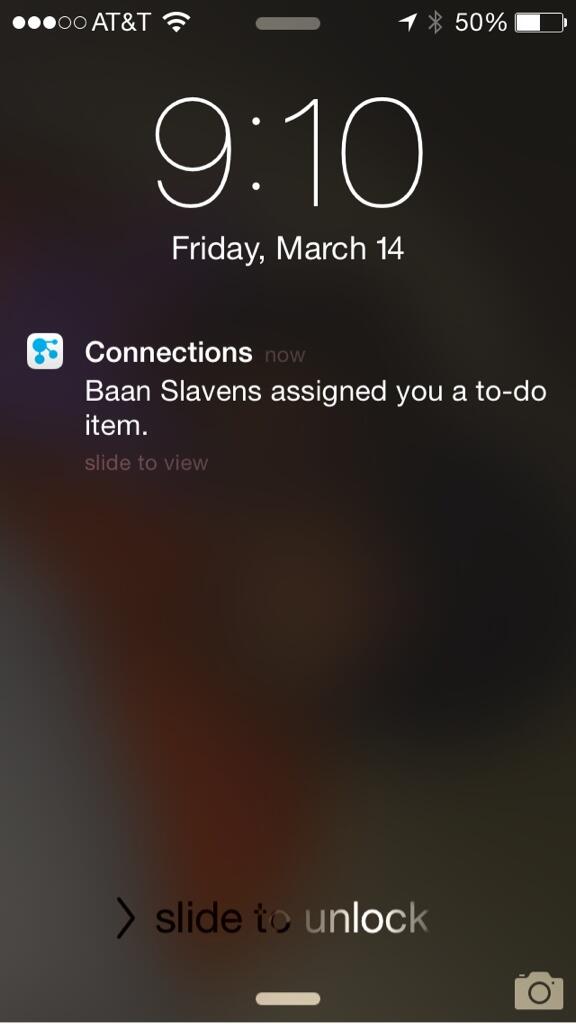
First, push notifications alert you when you have a new to-do (as seen below in the image), when someone asks to join one of your communities, or someone invites you to join their network.


Additionally, you can now select individual files to sync and work while you are offline. When syncing, the server will do a differential sync. That way if one of your co-workers updates only 1 slide in a 50MB presentation, only the particular slide that was changed will be sync, saving you time, battery, and bandwidth. If you don't have unlimited 3G/4G/LTE plan, you can also choose to sync only while connected to wifi.

Finally, you can also pick and choose which files to sync to which device. For example, you may only want 2-3 key presentations on your Android phone (or iPhone) while having 20-30 documents on your iPad where you can more easily edit the files.

Check out this 4 minute demo so you can see File Sync working in Mobile:


To see what else is new in IBM Connections 4.5 CR4, go here. To configure File Sync and push notifications, see the documentation here.

Tuesday, March 11, 2014

Tip: How To Share Links Using The IBM Connections Mobile App

View Comments
Various users have reached out to me asking how they can share links / pages as they surf the web from their mobile device with their network in IBM Connections.

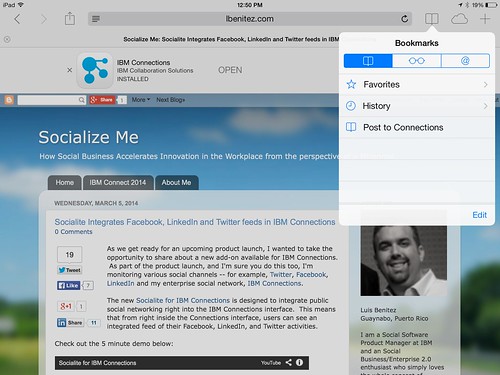
The trick is to use what's called bookmarklets. Follow these instructions to add the two bookmark lets to your browser and then you'll be able to quickly share links from your mobile browser to the IBM Connections Mobile app. I've written these instructions for Safari on iPad so these might vary based on your browser and/or mobile device.

  1. Open Safari on your iPad
  2. Add this page as a bookmark (click on the "Share" button in the top left)
  3. Find the bookmarklet below that you want. Select and copy the Javascript in the text field.

    To post a link as a status update:

    javascript:window.location='ibmscp://com.ibm.connections/updates?action=post&message='+encodeURIComponent(window.location.href)+''

    To save the link as a Bookmark in Connections

    javascript:window.location='ibmscp://com.ibm.connections/bookmarks?url='+encodeURIComponent(window.location.href)+'&title='+encodeURIComponent(document.title)+'&action=create'
  4. Go to your bookmarks (the book icon in the top right) and tap "Edit" in the bottom right. 
  5. Tap the new bookmark you just made of this page.
  6. Edit the name (e.g. Share in Connections) and in the URL field paste the Javascript you copied on step 3 above.
  7. Now to do the actual share, go to any web page, go to your bookmarks and tap the bookmarklet you want to use.


Voilá.

If you want to create your own bookmark lets for other things, check out this documentation on opening links to start the IBM Connections Mobile app. And if you are interested in other Bookmarklets (e.g. for Digg, Reddit, Pinterest, etc) check out this page.

Enjoy! 

Tuesday, November 5, 2013

IBM Connections Mobile Apps Updated -- Adds Support for CCM

View Comments
One of the long awaited updates for the mobile app is now here. We have just pushed the apps to the App Stores and you can now access the CCM (Connections Content Manager) libraries. This is huge as you can now review files on the go and Approve or Reject right from the mobile device. Now, no matter where you are, you are not a bottle neck and people don't have to wait until you are in your desktop to review files.

Of course, all the social actions around the file (liking, tagging, commenting, etc) are available for files stored in the community library.

Here's how it looks on iOS and Android:


There's also more new features:
  • Support for MobileIron on iOS
  • Support for Andorid KitKat (4.4)

To download the latest updates for the apps go to the Google Play or iOS App Store and download today!


Thursday, August 8, 2013

Tip: Smart App Banners To Promote the IBM Connections Mobile Experience

View Comments

Here's a tip to accelerate the deployment of the IBM Connections Mobile app on your sites. You may have seen some sites like LinkedIn recently add a banner suggesting users they launch into

A quick search on the web yielded this page on Apple's site with instructions on how to add a smart banner to promote a particular mobile app. Reading the instructions, I found out that all it takes is 1 line of code. You know I had to try it!

I went in to our blog on ibm.com, added the 1 line of code and voilá ! You can see the results in this screenshot from my iPad. To test it out, click here from your iOS device.

If the user doesn't have the app installed, they will be prompted to download it directly from the App Store.

To do this on your deployment:

  1. Follow the instructions here to customize page.jsp. The instructions are specific to header.jsp but it's the same process
  2. Open page.jsp with your favorite text editor
  3. Add the following line to the <head>

    <meta content='app-id=450533489' name='apple-itunes-app'/>

  4. Save the file
  5. Restart
Try it out and let me know how it goes.

Tuesday, July 2, 2013

Updated Mobile App for IBM Connections - Goodies for all

View Comments

Refresh your app stores, the latest monthly update is now available! A new mobile app update is ready for IBM Connections, IBM's enterprise social network (ESN) for collaboration. Last week, Chris Reckling did a great job summarizing the new features in the June 2013 release of native mobile apps.

My favorite feature is viewing events in the Action Required view of the activity stream. This view looks in the activity stream and can figure out which events require end user action. Thus, this view displays your latest to-do items from Activities, network and community invitations, requests to join moderated communities, and any third-party events requiring an action on your part.

For example, imagine an expense reporting application or a workflow application (e.g. IBM Business Process Manager ) where you are notified that you need to approve or reject something. You can do it directly from the activity stream, and now, directly from the mobile device!!! Mobile workers don't have to be a bottleneck anymore.

So if your App Store (or Google Play) icon looks like this:

it's time to update!!

Thursday, January 10, 2013

Gamification Goes Mobile with IBM Connections and Kudos

View Comments

As things ramp up for IBM Connect in 18 days, news tid bits are slowly starting to come out as to what's going to happen during the premier Social Business conference.

At IBM Connect, we are going to have an App Dev Throwdown where developers will have a chance to showcase their Social Business solutions built on the IBM Social Business platform. Make sure that you don't forget to go to that session to see all the new cool integration points developers are working on.

In the second release of Kudos, the gamification add-on for IBM Connections, it has been integrated into the native IBM Connections mobile app you can get from the iTunes App Store and/or Google Play. Kudos already tracks all actions done by a user either via the browser interface or the native mobile apps. Now, users can view their badges, the leader board and even Give Thanks to others directly from the app. They can also see their progress towards the various missions/achievements.

Check out the demo of the gamification module in mobile. While this is shown in an iPhone, this also works in the native IBM Connections iPad app.

This is extremely cool work so kudos to the Kudos team (see what I did there??).

To learn more about this solution, make sure that you register to attend #IBMConnect today!

Sunday, October 14, 2012

IBM Brings Social to Users with Updated IBM Connections Mobile Apps - Includes iPhone 5 Support

View Comments

Over the weekend, IBM updated the mobile apps for its social collaboration platform IBM Connections. The apps for Android and iOS mark the 4th release this year showing IBM's commitment and understanding of the importance of mobile in social collaboration. IBM Connections customers can download the update free of charge.

These releases round up a big week for IBM in mobile as IBM also released a new version of their instant messaging app for Android tablets.

The IBM Connections app for the iPad has become a powerful tool for me. As a remote worker, it's an essential tool to be productive and effective irrespective of where I am.

You can see the full list of new features and enhancements for the iOS app here. Here's my take of my favorite new features:

  • Support for iOS 6
  • Support for iPhone 5 (tall screen support)
  • Infinite scrolling
  • Support for IBM Connections 4.0 activity streams
  • Launch third party OpenSocial gadgets
  • Attach photos or videos to a status update
  • Include geolocation information in a status update
  • Offline access to forums you have viewed
  • Offline access to Community files and forums you have viewed
  • Remotely Wipe Connections app data
  • Share profile information using QRCode
  • Mobile Links in IBM Connection update emails now open in the app

I've also created a demo of the iPad app to showcase some of the new features:

The Android app for IBM Connections was also updated. To see a demo of the Android app, go here.

Download the apps now! You can get the free Android app from here and the free iOS app from here. Oh and keep those reviews coming!

Thursday, August 16, 2012

IBM Connections Mobile Apps Updated - Get Them Now

View Comments

IBM has just updated its mobile apps for IBM Connections on both Android and iOS (iPhone, iPod Touch and iPad) to version 3.5. By now, you've most likely seen the demos of this apps. If not, I'm including the one for iPad here and you can see the others over here.

With today's update IBM SmartCloud Connections users can now access their files on the cloud directly from their mobile device and also store them offline (with full encryption security) in case you are going to that very important meeting where you won't have Wifi or 3G access.


As you can see above, the app is also pre-configured for SmartCloud so simply select that account type, enter your username and password and off you go. Very easy! Expect more updates as we enable more and more services on the mobile apps for SmartCloud.

As usual, the app remains free and can be downloaded immediately from the iTunes App Store or from Google Play. If you went to Lotusphere 2012, you'll remember that this was originally targeted towards the end of this year. I'm happy that the development team was able to accelerate this work and enable these capabilities for our SmartCloud users.

So go on and get it! And don't forget to rate the app and leave a comment!

Tuesday, July 31, 2012

How To Customize the IBM Connections Mobile App for iOS, Android & BlackBerry

View Comments

Today IBM has published documentation on how to customize the mobile apps for IBM Connections. To customize the mobile apps, you need to have IBM Connections 3.0.1.1 CR2 installed (which you can get from here). As the IT admin, you have the control on the following settings:

  • Allow iTunes Sharing - whether iOS users can transfer files to the app via iTunes
  • Allow Web Sharing - whether uses accessing Connections via a browser should be re-directed to download the native app
  • Remember Password - whether to allow end users to store their passwords in their device
  • The ability to enable/disable different components of Connections (e.g. enable Files but disable Wikis)
  • For Files, there's a set of additional configuration options:
    • Encryption - whether downloaded files should be encrypted
    • Allow Upload/Download
    • Allow Export - whether downloaded files can be shared with other apps/folders
  • The name of the app and module can be fully configured
  • SSO authentication options (Siteminder, SPNEGO, etc)
  • Ability to add new applications to the app

If you haven't seen them yet, I've recorded a demo showing the latest Android and iOS apps. Here they are again.

iOS (iPad):

Android:

To access the documentation, click here http://www-01.ibm.com/support/docview.wss?uid=swg21606189

Wednesday, June 27, 2012

How To Get Users on the IBM Connections Mobile Apps Fast!

View Comments

By now, you are aware of the new IBM Connections mobile apps for iOS and Android that were released a couple of weeks ago.

The feedback so far has been amazing! The ratings and comments in the app store have been fantastic.

Today, I wanted to share a quick tip with you so you can help everyone in your organization get started with the mobile app. In fact, I highlighted this in my original blog post and I've received several questions already on how to do this.

The new mobile apps now support app provisioning via a link. This means that you can post a link in Connections or send it via email and when users click on it from their mobile device, the app is immediately launched and pre-configured for your server.

To do this, simply build a URL similar to the one below:

ibmscp://com.ibm.connections/launch?accountserver=https%3A%2F%2Fwww.bleedyellow.com%2Fmobile&accountuser=luis_benitez%40us.ibm.com&accountname=BleedYellow

and then send an email to your users and ask them to click on the link, for example:

Click this link to get started!

Notice that the URL contains the user ID of the person and the values are URL encoded. The URL above would be my unique URL to configure the app with BleedYellow.

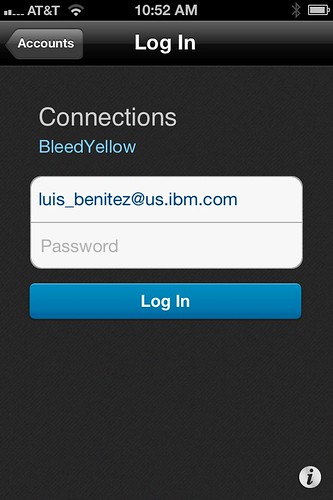
When the user clicks on that link, they are immediately brought over to the IBM Connections Mobile app and this is what they see:


Notice that everything is pretty much configured. The end user doesn't have to figure out what the URL is to their server. At this point all the user has to do is enter their password and off they go! Pretty cool, huh? The same URL will work both for the Android and iOS apps.

Enjoy!

Thursday, June 7, 2012

New iPad / iPhone App Available for IBM Connections

View Comments

IBM today released the latest update of the IBM Connections Mobile app for iOS ( iPhone, iPad and iPod Touch). The universal app for IBM Connections was initially released late last year. This release delivers on the roadmap shown at earlier this year at Lotusphere 2012 and is the Spring 2012 release. Check out this long list of new features in this:

  • New and improved user experience
  • New getting started tutorial
  • New interface for Profiles
  • Native integration of Profiles with device (e.g. save contact in device for access offline, share contact, click-to-call, etc)
  • New search capabilities, including type-ahead search!
  • New cached views for faster response times
  • Support for multiple IBM Connections accounts (e.g. inside/outside firewall)
  • Support to access files offline (and encrypted) on the device
  • Ability to share files with communities
  • Save pictures locally (offline)
  • App provisioning by email
  • Ability for administrators to control branding/look-n-feel from server
  • Ability  for administrators to add additional menu items from server
  • Ability for administrators to add a custom end user agreement
  • Ability for administrator to customize the login form
  • Support for Single Sign On solutions such as WebSEAL/TAM, Siteminder, and SPNEGO

As you can see, this is a massive release, so make sure you go out to the iTunes App Store right now and download the latest update. And if you haven't installed it, go ahead and give it a try. The app is pre-configured for Greenhouse, so simply enter your credentials and off you go.

I've captured a demo showing these latest updates which you can see below:

Get the IBM Connections app for iPad now for free from here!

Enjoy! (in the meantime, we'll keep working on the next release!)

Thursday, February 2, 2012

WebDAV for IBM Connections & Lotus Quickr

View Comments

One of the things that was very exciting about Lotusphere 2012 #ls12 is how the ecosystem for both IBM Connections and Lotus Quickr is growing. One of the business partners that introduced a solution is Lialis. They introduced a WebDAV add-on for IBM Connections.

So what is WebDAV? Let's not get into the technical details. Let's focus instead on what it enables. As per Lialis:

  • Downloading synchronizing content from/to IBM Connections Files
  • Deliver shared drives connected to IBM Connections to the users PC (OS independent)
  • Allow easy archiving of content stored in IBM Connections by coping the files from the file share
  • Readers apps supported: Goodreader, Readdledocs, Bitknex, WebDrive, readers for Android (*)
  • Download files from IBM Connections, upload files to IBM Connections via WebDAV
  • Delete files in IBM Connections via WebDAV
  • Create communities or profiles inside the IBM Connections via Webdav
  • Parallel user sessions supported

To me the most exciting feature is the ability to use IBM Connections as a mounted drive directly on your computer. For example, if have a Mac like me you could use this solution to mount all of your IBM Connections Files directly in Finder. Set up your Finder as described here in 3 steps and you are done! Very cool, right?

They have put together a quick video demonstrating the solution

To learn more, go here. And if you use Quickr, they also have a solution for you here: http://www.lialis.com/lotussolutionprovider.nsf/pages/quickrwebdav

Friday, January 13, 2012

How To Subscribe To IBM Connections Media Gallery via iTunes

View Comments

One of the new features that was introduced in IBM Connections 3.0.1 is the Media Gallery which Suzanne demos here. Chris Crummey recently asked me how could he subscribe to the items in the Media Gallery via iTunes. That way, when he's traveling he can catch up with the videos that have been added to the Media Gallery.

As you probably know, IBM Connections provides a very easy way to subscribe to each page via feeds. iTunes also has a way for you to manually add a feed to subscribe to a podcast. Thus, you can manually copy/paste the URL provided by IBM Connections, add it to iTunes and voilá.

I wanted to take this to a new level. As I thought more about this, I realized this is a huge use case. Imagine using the Media Gallery as a way to store enablement sessions as part of a product launch. Now, imagine giving your sales force a 1-click ability to take the Media Gallery offline and get up to speed on new products on their own time, perhaps as they are traveling from one customer to another.

Having said that, I created a quick customization which enables this. If you want to enable this on your server, follow these steps:

  1. If you haven't yet, copy footer.jsp to the customization directory. For example, copy <WAS_PROFILE_ROOT>/installedApps</cellName>/Activities.ear/oawebui.war/nav/templates/footer.jsp to <IC_INSTALL_ROOT>/data/shared/customization/common/nav/templates
  2. Switch to the <IC_INSTALL_ROOT>/data/shared/customization/common/nav/templates directory
  3. Open footer.jsp with your favorite text editor
  4. Scroll to the very bottom of the file and add the following line of code

    <script type="text/javascript" src="http://blog.lbenitez.com/iTunesConnections.js"></script>


  5. That's it!! 1 line of code! Now, save and close the file. This will make all the files uploaded to the Media Gallery and tagged with 'podcast' available via iTunes.

Here's a video of how this works:

I'll be demoing this in my session on Monday at Lotusphere '12 #ls12 .

Monday, October 17, 2011

How To Access your IBM Connections Files Offline from your iOS Device

View Comments

Last week I attended a conference in Cambridge, MA where I got to see Andrew McAfee give the keynote. I never get tired of listening to Andy. He does a great job on stage keeping everyone engaged, he's funny, and definitely very passionate about this whole Enterprise 2.0 space (of course, since he coined the term! ).

Updated 24/Sept/2012: As of June 2012, the native IBM Connections mobile apps allow you to take files offline without depending on a 3rd party tool. For more info check this blog entry out.

That was my first trip in 9 weeks and it was a good reminder of how many people are still offline for most of their work days. Previous to my current role, I used to be part of the sales organization where I would only have access to the network about 20% of the time any given week.

While I was in one of my meetings I needed to access one of my files stored in IBM Connections and the connectivity was not that great. Luckily, I had an offline copy of the file which I could still use and show to my peers.

I figured this could be a tip I could share with many of the IBM Connections users out there so I created a quick video showing how to do this. The trick is to use a free app that you can find on the iTunes App Store called Fresh Docs. The app is made by Zia Consulting and works over CMIS (Content Management Interoperability Services). As you may remember, IBM Connections introduced support for CMIS back in 2010. And this opens the door for many providers to integrate with Connections, such as this free app:

Download the app and feel free to test it against our own test environment called Greenhouse. Here are the settings you'll need:

Hostname: greenhouse.lotus.com

HTTPS: On

Port: 443

Service Document: /files/basic/cmis/my/servicedoc

Company Home: On

That should do it! Enjoy!