Pages

Showing posts with label bookmarks. Show all posts

Friday, July 25, 2014

Announcing the latest IBM Connections Mail Plug-In

View Comments
Today, IBM Connections Mail gets an update. If you don't know what IBM Connections Mail, let's catch you up.  IBM Connections Mail provides a simple and compelling way to perform essential email and calendaring tasks right from IBM Connections.

This is particularly useful as you can process your inbox with minimal context switching.  According to McKinsey, when users switch from one task to another, it really affects productivity.

Therefore, by keeping context switching to a minimum, you increase productivity in your organization.  Additionally, sending attachments is a snap as they are sent as links via IBM Connections (a feature that our competitors have copied).

Of course, with the IBM Connections 5.0 release less than a month ago this new version of IBM Connections Mail now fully supports IBM Connections 5.0.  Here's the other new capabilities:
  • Accept/Decline calendar invites
  • Save messages as draft
  • Adds support for Domino encrypted mail
  • Adds direct access to the Microsoft Outlook Web App
  • Adds support for Microsoft Exchange 2013
Here's a screenshot of the save as draft and accept/decline screens:


Here's a demo that was recorded when this originally shipped. 


Go get it from our catalog using this direct link!


Tuesday, March 11, 2014

Tip: How To Share Links Using The IBM Connections Mobile App

View Comments
Various users have reached out to me asking how they can share links / pages as they surf the web from their mobile device with their network in IBM Connections.

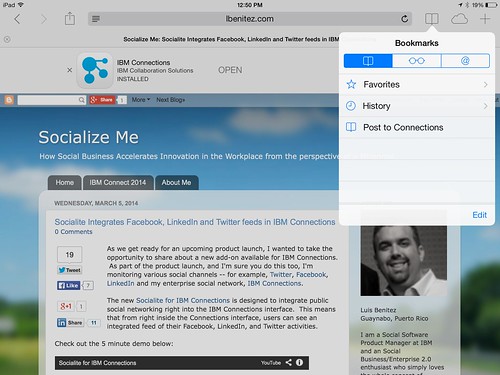
The trick is to use what's called bookmarklets. Follow these instructions to add the two bookmark lets to your browser and then you'll be able to quickly share links from your mobile browser to the IBM Connections Mobile app. I've written these instructions for Safari on iPad so these might vary based on your browser and/or mobile device.

  1. Open Safari on your iPad
  2. Add this page as a bookmark (click on the "Share" button in the top left)
  3. Find the bookmarklet below that you want. Select and copy the Javascript in the text field.

    To post a link as a status update:

    javascript:window.location='ibmscp://com.ibm.connections/updates?action=post&message='+encodeURIComponent(window.location.href)+''

    To save the link as a Bookmark in Connections

    javascript:window.location='ibmscp://com.ibm.connections/bookmarks?url='+encodeURIComponent(window.location.href)+'&title='+encodeURIComponent(document.title)+'&action=create'
  4. Go to your bookmarks (the book icon in the top right) and tap "Edit" in the bottom right. 
  5. Tap the new bookmark you just made of this page.
  6. Edit the name (e.g. Share in Connections) and in the URL field paste the Javascript you copied on step 3 above.
  7. Now to do the actual share, go to any web page, go to your bookmarks and tap the bookmarklet you want to use.


Voilá.

If you want to create your own bookmark lets for other things, check out this documentation on opening links to start the IBM Connections Mobile app. And if you are interested in other Bookmarklets (e.g. for Digg, Reddit, Pinterest, etc) check out this page.

Enjoy! 

Wednesday, November 21, 2012

Using IBM Connections Demos Now Available

View Comments

When IBM Connections 4.0 was released, I shared the IBM Connections 4.0 Overview demo. That's a great way to get your users excited for what's new in the 4.0 release. And as you know, I'm a big fan of videos and I think they are a great way to drive adoption.

Now as your users look for more in-depth demos of the capabilities of IBM Connections, you can use the following which are available in YouTube. And here's a tip! When you share these videos with your users, simply post them in a Wiki or a Blog in your Connections deployment to help spread the word.

Make sure you watch all these videos. I recommend the one for Search so you can see the new Trending widget that was added into IBM Connections 4.0. It's very cool!

Homepage

Activities

Blogs

Bookmarks

Communities

Connections Mail

Files

Forums

Moderation

No video, but I did want to highlight this awesome document posted to ibm.com. And if you are interested in a video, then I can offer this one on how to customize existing reports that ship with IBM Connections 4.0.

Search

Wikis

Thursday, June 9, 2011

How to add Facebook Like, Twitter, and Google +1 Buttons to IBM Connections

View Comments

Last week I shared instructions on how to add the Google +1 button to Blogger. When I tweeted about it, I noticed that I had never shared instructions on how to add the Facebook Like, Twitter and Google +1 buttons to IBM Connections.

Once you follow the instructions below, you'll see the Twitter, Google, and Facebook buttons show up in the header as shown below. Of course, there are other places to put it in; this is just where I placed them. And once you do this, the users will have a very easy way to share a blog, wiki, discussion topic, etc with their favorite social network.


Here are the instructions on how to get started:

  1. If you haven't yet, copy footer.jsp to the customization directory. For example, copy <WAS_PROFILE_ROOT>/installedApps</cellName>/Activities.ear/oawebui.war/nav/templates/footer.jsp to <IC_INSTALL_ROOT>/data/shared/customization/common/nav/templates
  2. If you haven't yet, copy header.jsp to the customization directory. For example, copy <WAS_PROFILE_ROOT>/installedApps</cellName>/Activities.ear/oawebui.war/nav/templates/header.jsp to <IC_INSTALL_ROOT>/data/shared/customization/common/nav/templates
  3. Switch to the <IC_INSTALL_ROOT>/data/shared/customization/common/nav/templates directory
  4. Open header.jsp with your favorite text editor
  5. At the very end of the file, look for the last </div>. Just before that, add the following code:

    <div style="float: right;">
     <div style="float: left; clear: none; padding: 5px; padding-left: 5.5px; padding-right: 5.5px;">
      <a href="http://twitter.com/share" class="twitter-share-button" data-count="horizontal" data-via="lbenitez">Tweet</a>
     </div>
     <div style="float: left; clear: none; padding: 5px; padding-left: 5.5px; padding-right: 5.5px;">
      <g:plusone></g:plusone>
     </div>
     <div style="float: left; clear: none; padding: 5px; padding-left: 5.5px; padding-right: 5.5px;">
      <iframe src="http://www.facebook.com/plugins/like.php?app_id=166725596724792&amp;href=
    <%=request.getRequestURL()%>&amp;send=false&amp;layout=button_count&amp;width=75
    &amp;show_faces=false&amp;action=like&amp;colorscheme=light&amp;font&amp;height=21"
    scrolling="no" frameborder="0" style="border:none; overflow:hidden; width:75px; height:21px;" allowTransparency="true"></iframe> </div> </div>


  6. Save and close the file
  7. Open footer.jsp with your favorite text editor (Note: this is the same place where you would add the Google Analytics code or Coremetrics or any other web analytics tool you are using)
  8. Scroll to the very bottom of the file and add the following lines:

    <script type="text/javascript" src="http://apis.google.com/js/plusone.js"></script>
    <script type="text/javascript" src="http://platform.twitter.com/widgets.js"></script>
    

  9. Save and close the file

Enjoy!

Note: The Twitter button doesn't work over when using SSL (https) as mentioned in Twitter's FAQ. Therefore, if you have configured Connections to work over SSL you may want to get rid of the Twitter code and just leave the Facebook and Google buttons.

Note 2: The Facebook and Google buttons require that the URL that's being shared is accessible externally. Therefore, this code won't work in an internal version of Connections; only for those accessible externally.

Wednesday, May 25, 2011

New Portlets Available for Connections 3.0.1

View Comments

Because Mac Guidera is out of the office and is probably not able to share these great news (he's the Product Manager for the awesome Connections plugins), I figured I would do so. Today we made available new portlets for Connections 3.0.1. As I mentioned earlier, we had 9 portlets for: Wikis, Activities, Profiles, Bookmarks, Tag Cloud, and Blogs.

Today, we've released new portlets that support Ideation blogs and add support for 3rd party authentication providers (TAM / Siteminder).

Even though the portlets are called Connections 3.0.1 Portlets, they support:

  • IBM Lotus Connections 2.5
  • IBM Lotus Connections 3.0
  • IBM Connections 3.0.1
  • IBM WebSphere Portal Server 6.1.5.2*
  • IBM WebSphere Portal Server 7.0.0.1*
  • Microsoft Windows XP SP3
  • Microsoft Windows 7 SP1 (32-bit, 64-bit toleration)
  • Mac OS X 10.4, 10.5
  • Microsoft Internet Explorer 6, 7, 8
  • Mozilla Firefox 3.5, 3.6
  • Apple Safari 4

You can download the portlets, for free as usual, from the Lotus App Catalog here: https://greenhouse.lotus.com/plugins/plugincatalog.nsf/assetDetails.xsp?action=editDocument&documentId=511C128045FCD5D1852577B60055AD81

Thanks to the plugin team for making this available!

Wednesday, January 27, 2010

Bookmark simultaneously to Lotus Connections and del.icio.us

View Comments

Earlier today I received a ping from one of my favorite customers. He showed QuixApp a nice bookmarklet that basically lets you do whatever you want. He thought this would be a good idea, for example, to create a bookmarklet that would simultaneously bookmark a page both in Lotus Connections and in del.icio.us.

I immediately answered that this has been available for a while, internally at IBM. The following bookmarklet was created by Sacha Chua and if you are browsing an internal page (e.g. w3.ibm.com/....) then the page is only bookmarked in Lotus Connections. If you are browsing an extranet site (e.g. www.cnn.com... ) then the page will be tagged in both services (you don't want internal/confidential pages to be accidentally saved to del.icio.us, right?).

Before you can use it with your own Lotus Connections deployment, you'll have to customize it a bit. Once you look at the code, you'll see something like this:

if(!location.href.match('.ibm.com'))

The first step is to change that from .ibm.com to whatever your company's hostname is. Next, you'll want to change the Lotus Connections URL. In the code you'll see something like this:

var%20h='http://w3.ibm.com/connections/dogear';

Again, change that to match the deployment of your organization and voilá.

IBMers: Drag and drop it to your bookmarks bar: tag this

According to Sacha, the bookmarklet builder was very handy during the creation of this bookmarklet.

Wednesday, October 28, 2009

Opening bookmarks in a new window

View Comments

Today I got to enjoy Toronto again. I was here 3 weeks ago setting up an environment for a potential customer. Last time I was here, they didn't have a Notes 8.5.1 which was released just 16 days ago. It's interesting to see the customer's perception of Connections with Notes 8.5.1. They are completely loving the integrated suite of products all working together in harmony. The 4 hours that I was there, they just wouldn't stop congratulating me for the work that we've done integrating Notes, Sametime and Connections together.

I, of course, don't get any credit for this. All credit goes to the development team for their great work. Not sure if the development team will see this (they are probably heads down now getting ready for Lotusphere), but your work is appreciated.

Anyway, there was one customization that customer wanted: open bookmarks in a new window. Here's the customization that I made in case you would like to do the same in your environment.

  1. Go to the Lotus Connections server
  2. Go to the following directory: <WAS_PROFILE_ROOT>/installedApps\<cellname>\Dogear.ear\dogear.webui.war\h3\jsp\main
  3. Save a backup of bookmark.jspf, currentBookmark.jspf
  4. Open the files with your favorite text editor
  5. Look for this:
    <a id="bmlink_${link.id}" onmouseover....
    
  6. Add target="_blank" before id so that it looks like this:
    <a target="_blank"id="bmlink_${link.id}" onmouseover
    
  7. Save and close the files
  8. "Touch" h3.jsp
  9. Delete the directory: <WAS_PROFILE_ROOT>\temp\*
  10. Clear browser cache
  11. Reload Bookmarks

Enjoy!

Tuesday, August 25, 2009

Take your social bookmarks offline

View Comments

With Lotus Connections 2.5 only 3 days away and Apple trying to steal our thunder, I've learned some good news for mobile workers who depend very much on their bookmarks. The OpenNTF consortium has just published a new plugin for Lotus Connections Bookmarks created by Hanspeter Jochmann. The plugin allows Lotus Notes users to view their bookmarks directly from Notes and take them offline so that they are accessible while on the go! You can also create bookmarks later and synchronize them later (or just keep them local).

Here's a video that shows that functionality.


The plugin is available for free and can be downloaded from here.
Enjoy!