Pages

Showing posts with label documentation. Show all posts

Thursday, November 3, 2016

IBM Watson Workspace -- Code Talks So Here's The First Samples

View Comments
Time for the next post on IBM Watson Workspace. In this post I wanted to share some code samples that could help you get going in your development of apps for IBM Watson Workspace using the IBM Watson Work Services and APIs.

I know many developers, including myself, learn a lot from code samples (probably more than using actual API documentation). So to build on my post from earlier this week, we have published the first 5 code samples into the Watson Work org in Github and there should be more posted this week and next. My samples are the Twitter and Weather apps. I built these as fully functioning apps that you can deploy to a server and get up and going in a few minutes. And once they are running, feel free to hack away!

To make things simpler, I've also included a one-click button to deploy the app to Bluemix (which I thought was freaking cool how they make this possible). This, however, is not a required step. If you want to use with another cloud provider, by all means. Back to Bluemix, when you click the button, Bluemix pulls down the code from Github and magically gets it up and running.


One cool thing is that even before the samples were available, I already picked up a few blogs of developers using the APIs:
even one creating an Eclipse plug-in that was able to get something going in < 1 hour ( I love hearing those stories):


So quick tour of the Weather app. It uses the Weather Underground APIs to get current conditions based on a US zipcode. I use the node module to convert the zip code to city and state:
const cityState = zipcode.lookup(zc);

With that info, I now call the Weather Underground APIs to get the current conditions:

client.conditions(opts, function(err, data) {

Now with the data that I get back, I build a message to post back to IBM Watson Workspace and put it in the appropriate JSON construct:

const messageData = {
type: "appMessage",
version: 1.0,
annotations: [
{
type: "generic",
version: 1.0,
color: "#D5212B",
title: "Current weather conditions",
text: message
}
]
};

and then call the API to post it back:

request(sendMessageOptions, (err, response, body) => {

So that should give you an idea on how to listen to a conversation, act on it, and then respond back. I followed a similar flow to build the Twitter app and my hope is you can take it and hack it to build your own.  And if you are in the mood to help improve these samples, pull requests are welcome!

Now definitely check out what Redbooth, Rocket, OpenTopic, Sapho and others have done... VERY COOL! (and just to make it more enticing.. Sapho for example has Marketo and Google Adword integration... )

Monday, April 25, 2016

How To Edit Files in Sharepoint or Box with IBM Docs

View Comments
One of the capabilities that we highlighted as part of the IBM Docs 2.0 release was the new set of APIs to allow real-time co-editing of files in repositories other than IBM Connections (e.g. Alfresco, SharePoint, etc).

So first, what is IBM Docs ? The goal of IBM Docs is to make it easier for teams to create and allow for collaborative editing of word processing, spreadsheet and presentation documents in real time. This online editor provides key collaborative services such as coediting, file management and contextual commenting (so you can see who typed what).


At IBM Connect earlier this year, Jim Puckett, product manager for IBM Docs, shared an overview of IBM Docs which you can see here:


With the new set of APIs you can now build collaborative applications. So if you are an ISV looking for a way to embed co-editing, check out IBM Docs. Van Staub first shared how to integrate Docs with any app. Then he took it to the next level and describes how to edit files stored in SharePoint with IBM Docs.

Last week, IBM published a tech note that describes the process to set up IBM Docs to edit files stored in Box. This provides a common editing capabilities for files, irrespective of where they are stored.

Want to learn more ? Come to Social Connections 10 in Toronto in early June! Check out the full agenda that was just announced last week. Register today!

See you there!

Tuesday, November 17, 2015

How To Enable Nested LDAP Groups in IBM Connections

View Comments
The other day I was asked how to take advantage of LDAP / Active Directory (AD) groups within IBM Connections, specially if those groups contain nested groups.  So I went to our internal brain (IBM Connections) and a quick search turned out a post from Antonio Aleandri and with his permission, I'm re-posting here:

-=-=-=-=-

By default, nested groups (nested LDAP groups) are not enabled in IBM Connections. What this means, for example, is that if you add the parent group as member of a restricted community, users belonging to children groups are not automatically Community members.

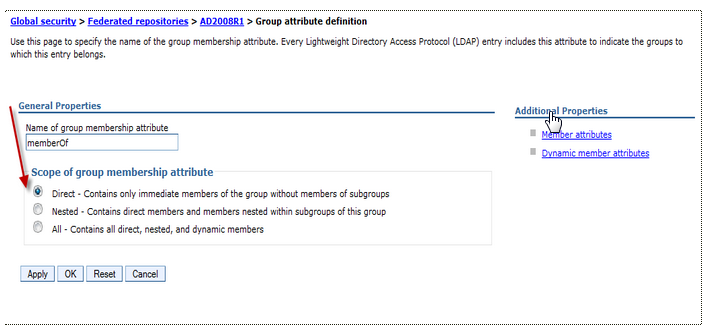
To enable the nested group you have to customize the scope of member attributes of Group attribute definition in your federated repository.

There are some small differences depending on the type of LDAP repository used:

Active Directory

Change only the scope of member attribute="member" to nested as shown below:


Tivoli Directory Server and Domino 

Customize the name of group membership attributes in Person record (ibm-allgroups for TDS and dominoAccessGroups for Domino) and set the scope to nested:


Check the right Object Class used for member attributes (groupOfUniqueNames for TDS and DominoGroup for Domino)


Save the configuration and restart all components!

Tuesday, April 21, 2015

How To Integrate Your App with IBM Connections Cloud with 2 Lines of Code

View Comments
Last week I was at the IBM Connections user group conference, called Social Connections, in Boston MA.  There, I got the opportunity to meet with many end users as well as developers interested in building apps for IBM Connections.

A particular session that I got great feedback from developers was the one titled Mastering the IBM Connections Developers Experience. Vijay Francis and Paul Bastide took the audience through the options to integrate with IBM Connections Cloud.  One of the samples was how to take an existing app and bring in our navigation components into it in less than 30 seconds!

So imagine you have an app like this:


Now let's take that and add the IBM Connections Cloud navigation to it.  Add a couple of lines of code and boom!


Now, you have an easy and consistent way for users to go back and forth between your app and the main Connections interface. So how did I do this? As easy as 1-2-3:

  1. Add the following before the closing body tag in your web app

    <script src="https://apps.na.collabserv.com/navbar/banner/partner/navBar?oneui=3" type="text/javascript"></script>
  2. Add the following to the head tag

    <link href="http://apps.na.collabserv.com/theming/theme/css/3" rel="stylesheet" type="text/css"></link>
  3. Add the following CSS classes to your opening body tag

    class="lotusui30 lotusui30_body lotusui30_fonts scloud3"
And if you look at the steps above, basically you are using 2 lines of code to do the integration. Easy!

For more information check out these links:

Monday, September 29, 2014

New Release of IBM Connections Social Cloud Is Here

View Comments
Here's one way to start the week on a high note.  Over the weekend, we enabled the latest features for our Q3 (or fall release) of IBM Connections Social Cloud, which, as you can tell off the bat, features a new name and tons of goodies. Mitch and Chris had already shared the news about the new name, which we made public back in January of this year at IBM Connect 2014.

You may have already seen the blog from last week from Rebecca Buisan which previewed some of the things that we turned on this past weekend. Let me take the opportunity to go into a bit more detail.
First, you'll notice that we have a brand new site over at http://ibmcloud.com/social as you can see above. We want to make it easy to find what you need and direct your attention to what matters. As you may remember, last month we turned on video chat. This month, we've added features to make it easier to find experts, synchronize your files to the desktop, and increased engagement capabilities by using @mentions in more content areas (for example, forums, to-do's and more). I'm not fond of text, so check out this presentation for all the details of what's new:


How's that for a release ? But wait...! There's more!


Developers.. we haven't forgotten about you!! We are launching a new site just for you over at http://developer.ibm.com/social (screenshot above) very soon. We are going to be doing some continuous updates to this page so expect to see more changes soon. Additionally, we've created a schedule to continuously share content with you via the team blog. This will get you more content from more people and gives a hand to the super awesome Niklas Heidloff. If you haven't subscribed to that one, do it now.

Want to get your hands on all of this? Start a trial today over at http://ibmcloud.com/social .

Monday, August 4, 2014

The IBM Connections 5.0 Reviewer's Guide is Now Available in the iBook Store

View Comments
By now you are probably aware that the IBM Connections 5.0 Reviewer's Guide is available as shared by one of my teammates in the product management team, Albert Nichols.

For a while now, I've been wondering how we can make this more widely available and perhaps add even more value to this great asset.  Earlier in the year (if I remember correctly), I had heard that Apple had made iBooks Author a free app and decided to take that for a spin and see what I could do with it. And given the recent announcement of the Apple and IBM partnership, I figured why not!

To my surprise, it was very simple to take the work that Albert (and the rest of the PM team had done) and import it into iBooks Author and add some dynamic elements to it. As you may know, the Reviewer's Guide covers a lot of the functionality within IBM Connections, as well as our different integration points into ECM, Notes, Microsoft Outlook, SharePoint, mobile, etc. Therefore, I thought that a good way to make the guide more dynamic would be to incorporate all the various demos directly into the book.


My experience with iBooks Author was pretty positive. It only took a few minutes to convert the Reviewer's Guide into iBook format. Then, it took me about 5-6 hours to reorganize the content into iBook chapters, add the demos and interactive screenshots, and publish it to the iTunes store.  During the publishing process, I even discovered that iTunes Producer already integrates with Aspera, an IBM company for super fast file transfer.

Therefore, you now have a super easy way to get the Reviewer's Guide, access it offline, and even share with your peers. Go ahead and download the IBM Connections 5.0 Reviewer's Guide from the iBook Store and let me know what you think. I'm curious to know if this is valuable and if you would like to see more of these in the future.

PS.  There's 1 page that didn't come out correctly, but I'll let you find it.

Thursday, June 26, 2014

IBM Connections 5.0 Is Ready for Download

View Comments
I just got confirmation that IBM Connections 5.0 is now ready for download ! This has been quite an exciting quarter as we've been building up to this day ever since I published the trailer back in April.

When I initially joined the product management team we were just launching IBM Connections 3.0.1.   I was then managing another component of the platform.

As time went by, I started to influence more of the platform and with this release, it was the first time that I was completely involved all the way from the first planning session to the release of the software. Of course, it's been quite an experience and it's what I've wanted to do for a long time.  I'm grateful for the opportunity that I've been given to bring this new product to market and for everything that I've learned in terms of what it takes to plan, build, and launch a product.

Here are some links you'll probably need:
I'll be updating those links as necessary.

I've also started collecting videos about IBM Connections 5.0 and will continue to update this playlist as they become available:


Now that you have the code, I'm anxious to know when you upgrade!! 

Tuesday, March 11, 2014

Tip: How To Share Links Using The IBM Connections Mobile App

View Comments
Various users have reached out to me asking how they can share links / pages as they surf the web from their mobile device with their network in IBM Connections.

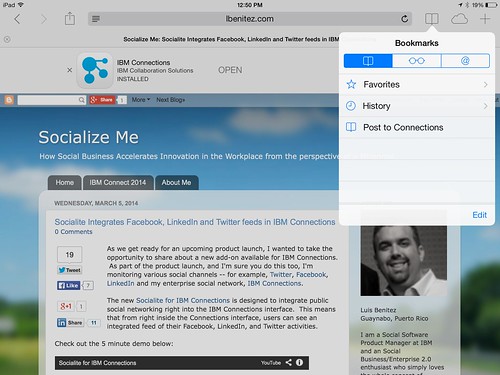
The trick is to use what's called bookmarklets. Follow these instructions to add the two bookmark lets to your browser and then you'll be able to quickly share links from your mobile browser to the IBM Connections Mobile app. I've written these instructions for Safari on iPad so these might vary based on your browser and/or mobile device.

  1. Open Safari on your iPad
  2. Add this page as a bookmark (click on the "Share" button in the top left)
  3. Find the bookmarklet below that you want. Select and copy the Javascript in the text field.

    To post a link as a status update:

    javascript:window.location='ibmscp://com.ibm.connections/updates?action=post&message='+encodeURIComponent(window.location.href)+''

    To save the link as a Bookmark in Connections

    javascript:window.location='ibmscp://com.ibm.connections/bookmarks?url='+encodeURIComponent(window.location.href)+'&title='+encodeURIComponent(document.title)+'&action=create'
  4. Go to your bookmarks (the book icon in the top right) and tap "Edit" in the bottom right. 
  5. Tap the new bookmark you just made of this page.
  6. Edit the name (e.g. Share in Connections) and in the URL field paste the Javascript you copied on step 3 above.
  7. Now to do the actual share, go to any web page, go to your bookmarks and tap the bookmarklet you want to use.


Voilá.

If you want to create your own bookmark lets for other things, check out this documentation on opening links to start the IBM Connections Mobile app. And if you are interested in other Bookmarklets (e.g. for Digg, Reddit, Pinterest, etc) check out this page.

Enjoy! 

Thursday, February 6, 2014

The Code Behind My IBM Connect 2014 Keynote Demo - Part 2

View Comments
Yesterday, I shared the initial piece of code that I got working in getting ready for the IBM Connect 2014 keynote demo. If you haven't seen that, take a look at that before going through this post.

As I explained yesterday, I wanted to get a Pinterest-like layout for the activity stream within the portal, and that's what I showed yesterday. I then wanted to take that example and also add that to the landing page of a community. That way, as a community manager I can not only see the latest updates  but I can also share and direct my team to the content I want them to see.  Here's a snapshot of the community landing page I showed:


Notice that in this layout, the stream shows up in a multi-column view, and the profile photo is under each card (instead of inside the card as in yesterday's post). 

The trick? Just some minor tweaks to the code from yesterday. I still used jQuery, the Waterfall plugin, and some CSS magic.  Here's the code:

1. Include the right JavaScript:

<script src="jquery-1.9.1.min.js"></script>
<script src="waterfall-master/demos/js/libs/handlebars/handlebars.js"></script>
<script src="waterfall-master/demos/js/waterfall.min.js"></script>
<script src="jquery.timeago.js" type="text/javascript"></script>
2. The CSS magic


<style type="text/css">
.homepage {
font-family: "HelveticaNeue-Light", "Helvetica Neue Light", "Helvetica Neue", sans-serif;
font-weight: 300;
color: #444;
line-height: 1.2;
margin: auto;
width: 740px;
background-color: #f0f0f0;

}

.newsfeed {
margin: auto;
width: 740px;
background-color: #f0f0f0;
padding-top: 20px;
}

.columnHeader {
font-family: "HelveticaNeue-Bold", "Helvetica Neue Bold","Helvetica Neue", sans-serif;
font-weight: 600;
font-size: 90%;
}

a {
color: #1c8aae !important;
text-decoration: none !important;
}

.date {
color: #d9d9d9 !important;
text-decoration: none !important;
}

.timeago {
color: gray !important;
border-bottom: none !important;
}

.card {
border: 2px solid #FAFAFA;
box-shadow: 0 1px 2px rgba(34, 25, 25, 0.4);
-webkit-column-break-inside: avoid;
-moz-column-break-inside: avoid;
column-break-inside: avoid;
padding: 5px;
background-color: #fff;
background: -webkit-linear-gradient(45deg, #FFF, #F9F9F9);
opacity: 1;
width: 330px;

-webkit-transition: all .2s ease;
-moz-transition: all .2s ease;
-o-transition: all .2s ease;
transition: all .2s ease;

}

.leftColumn {
float: left;
}
.rightColumn {
float: left;
padding-top:29px;
padding-left: 10px;
}

.photo {
width: 65px;
height: 65px;
border-radius: 35px;
-webkit-border-radius: 35px;
-moz-border-radius: 35px;
border-color: #fff;
border-style: solid;
box-shadow: 0 0 3px rgba(0, 0, 0, .4);
-webkit-box-shadow: 0 0 3px rgba(0, 0, 0, .4);
-moz-box-shadow: 0 0 3px rgba(0, 0, 0, .4);
}

.attachment {
max-width: 290px;
max-height: 290px;
}

.signature {
font-size: 75%;
color: gray;
padding-top: 10px;
}

.div {
float:left;
padding-top: 10px;
}

.asentry {
width: 345px;
}

.sharkfin {
margin-top:-13px;
margin-left:25px;
}

.message {
padding: 20px 10px 20px 10px;
}

.attachDiv {
width: 299px;
height: 299px;
}
</style>

3. Create the HTML placeholder where the content will be rendered asynchronously

<body style="margin: 0;">
<div class="homepage">

<div class="newsfeed">
<div id="container" class="container"></div>
</div>
</div>
....


4. The template for how the activity stream will be rendered:

<!-- This controls how the Activity stream is rendered -->
<script type="text/x-handlebars-template" id="waterfall-tpl">
{{#list}}
<div class="asentry">
<div class="card">
<div class="message">

{{{title}}} {{#if object.summary}} "<i>{{{object.summary}}}</i>" {{/if}}

<br/>
{{#each object.attachments}}
<div class="attachDiv">
<img class="attachment" src="{{this.url}}" >
</div>
{{/each}}
</div>
</div>
<img class="sharkfin" src="sharkfin-2.png">
<div class="signature">
<div class="leftColumn">
<img class="photo" src="{{photoId actor}}" />
</div>
<div class="rightColumn">
<a class="date" href="{{object.url}}">
<abbr class="timeago" title="{{published}}">{{makeDatePretty published}}</abbr>
</a>
&nbsp;&bull;&nbsp;<span class="action">Like ( {{object.likes.totalItems}} )</span>&nbsp;&bull;&nbsp;
<span class="action">Comment ( {{object.replies.totalItems}} )</span>
</div>
</div>
</div>
{{/list}}
</script>

5. Call the Waterfall plug-in

<script>
// Now call the activity stream API and load the stream
$('#container').waterfall({
itemCls: 'asentry',
colWidth: 345,
gutterWidth: 20,
gutterHeight: 20,
maxPage: 1,
isAnimated: true,
maxCol: 2,
isFadeIn: true,
debug: false,
checkImagesLoaded: false,
path: function(page) {
return 'http://connections.demolotus.com/connections/opensocial/basic/rest/activitystreams/urn:lsid:lconn.ibm.com:communities.community:' + params.communityId + '/@all/@all?rollup=true&shortStrings=true&&format=json&page=' + page;
}
});

</script>

And there you have it! You can now render the IBM Connections activity stream in a grid format with resizable cards.

The big changes between yesterday's post and today are mostly in step 2 (the CSS required for the rendering), step 4 (the template for the rendering of each activity stream entry) and step 5 (we now call the community stream API instead of the overall activity stream API).

Fun !!

Wednesday, February 5, 2014

The Code Behind My IBM Connect 2014 Keynote Demo

View Comments
This is probably going to be part 1 of a series. Now that IBM Connect 2014 is done, I wanted to recap and share with the community in more detail what I showed at the keynote (a.k.a OGS/Opening General Session).

First, I assume that you've seen the keynote by now. If you haven't, here's the full session. If you skip to about 1:12:00 that's where my part begins.


I divided my demo into 3 parts:
As I organized the demo, I wanted to focus on business value and encourage people to go to the breakout sessions to get all the gory details.  For some parts, I wrote some custom code (warning: when you have a product manager writing code, you could end up in weird places). Let me tackle one of the first things I got working for the demo: a Pinterest-like layout for the news feed/activity stream (as seen on the left below). This is something you can do today with IBM Connections 4.5 !

The trick to get that working was using the jQuery plugin Waterfall. Actually, this plug-in was the magic behind a lot of the things that I demo'ed: the community grid, people recommendations, notifications, etc.  (stop here if coding is not your thing)

To render the activity stream as shown above, I needed five parts:

1. Include the right JavaScript

<script src="jquery-1.9.1.min.js"></script>
<script src="waterfall-master/demos/js/libs/handlebars/handlebars.js"></script>
<script src="waterfall-master/demos/js/waterfall.min.js"></script>
<script src="jquery.timeago.js" type="text/javascript"></script>


2. Create the proper CSS for styling

<style type="text/css">
.homepage {
font-family: "HelveticaNeue-Light", "Helvetica Neue Light", "Helvetica Neue", sans-serif;
font-weight: 300;
color: #444;
line-height: 1.2;
background-color: #f0f0f0;
padding-left: 12px;
margin: 0 auto;
width: 1000px;
font-size: 14pt;
}

.columnHeader {
font-size: 150%;
padding-left: 13px;
}

a {
color: #1c8aae !important;
text-decoration: none !important;
}

.date {
color: #d9d9d9 !important;
text-decoration: none !important;
}

.timeago {
color: gray !important;
border-bottom: none !important;
}

.card {
border: 2px solid #FAFAFA;
box-shadow: 0 1px 2px rgba(34, 25, 25, 0.4);
-webkit-column-break-inside: avoid;
-moz-column-break-inside: avoid;
column-break-inside: avoid;
padding: 5px 5px 15px 5px;
background: -webkit-linear-gradient(45deg, #FFF, #F9F9F9);
background: -moz-linear-gradient(45deg, #FFF, #F9F9F9);
opacity: 1;
width: 415px;

-webkit-transition: all .2s ease;
-moz-transition: all .2s ease;
-o-transition: all .2s ease;
transition: all .2s ease;

}

.newsfeed {
//padding-left: 20px;
float: left;
width: 450px;
}

.leftColumn {
padding: 10px 20px 20px 20px ;
float: left;
}
.rightColumn {
float: left;
width: 325px;
padding-top: 10px;
}

.photo {
width: 50px;
height: 50px;
border-radius: 25px;
-webkit-border-radius: 25px;
-moz-border-radius: 25px;
box-shadow: 0 0 4px rgba(0, 0, 0, .2);
-webkit-box-shadow: 0 0 4px rgba(0, 0, 0, .2);
-moz-box-shadow: 0 0 4px rgba(0, 0, 0, .2);
}

.message {
font-size: 75%;
}

.attachment {
max-width: 320px;
max-height: 240px;
}

.attachDiv {
padding: 5px 0;
height: 240px;
}

.signature {
font-size: 90%;
color: #666 !important;
}

</style>


3. Create a placeholder for the HTML to be rendered asynchronously

<body style="background-color: #f0f0f0; margin: 0; overflow: scroll;">
<div class="homepage">

<div class="newsfeed">
<p class="columnHeader">News</p>
<div id="container" class="container"> <!-- activity stream will be rendered here --> </div>
</div>
</div>
....


4. Create a template for how I wanted it to look (that way the Waterfall plugin knows how to render the activity stream)

<script type="text/x-handlebars-template" id="waterfall-tpl">
{{#list}}
<div class="card">
<div class="message">
<div class="leftColumn">
<img class="photo" src="{{photoId actor}}" />
</div>
<div class="rightColumn">
{{{title}}} {{#if object.summary}} "<i>{{{object.summary}}}</i>" {{/if}}
<br/>
{{#each object.attachments}}
<div class="attachDiv">
<img class="attachment" src="{{this.url}}" />
</div>
{{/each}}
<br/>
<div class="signature">
<img style="vertical-align: middle;" src="{{generator.image.url}}"> <a class="date" href="{{object.url}}">
<abbr class="timeago" title="{{published}}">{{makeDatePretty published}}</abbr>
</a> &bull; {{object.likes.totalItems}} Likes &bull; {{object.replies.totalItems}} Comments &bull; Save This
</div>
</div>
</div>
</div>
{{/list}}
</script>


5. Call Waterfall against the Activity Stream API

<script>

$('#container').waterfall({
itemCls: 'card',
colWidth: 420,
gutterWidth: 20,
gutterHeight: 20,
maxPage: 1,
isAnimated: true,
isFadeIn: true,
debug: false,
checkImagesLoaded: false,
path: function(page) {
return 'http://connections.demolotus.com/connections/opensocial/basic/rest/activitystreams/@me/@all/@all?shortStrings=true&rollup=true&format=json&page=' + page;
}
});
</script>


And there you have it! This will give you the activity stream in a multi-column format with a rendering similar to what you see in Pinterest.  To change how it looks, you mostly have to look at steps 2 and 4 above and provide the layout/styling you want.

In the next few posts, I'll share the code for the other pages. But really it all came down to Waterfall! Once you learn that plug-in, there's tons you can do !!!

I hope this is helpful!

Thursday, November 14, 2013

Tip: How to Change the Default View of Community Events

View Comments
The other day I was asked how to change the default view of the Community Events app within IBM Connections.

For example, instead of coming into the list view of events, you may want to come into the grid view.


If that's the case, your admin can go in and make the following change to the widgets-config.xml file:

..
<widgetDef defId="Calendar" primaryWidget="false" showInPalette="true" description="calendarDescription" modes="view edit fullpage search" uniqueInstance="true" url="{communitiesSvcRef}/calendar/Calendar.xml?version={version}" iconUrl="{webresourcesSvcRef}/web/com.ibm.oneui3.styles/imageLibrary/Icons/ComponentsGray/CalendarGray16.png" helpLink="{helpSvcRef}/topic/com.ibm.lotus.connections.communities.help/community_events_frame.html"> <itemSet> <item name="calendarRoot" value="{communitiesSvcRef}/calendar" /> <item name="communitiesBaseUrl" value="{communitiesSvcRef}" /> <item name="defaultView" value="grid" /> <item name="version" value="{version}" /> ..

For more information on how to modify this file, please read the instructions here. And that would do it!!

Wednesday, September 25, 2013

How To Migrate from Quickr to IBM Connections Content Manager

View Comments

Earlier this year, we released IBM Connections 4.5. The big focus of IBM Connections 4.5 is the new Content Manager add-on which brings the power of content management and combines it with the power of the IBM Connections social platform. The add-on is part of the core IBM Connections installer so there's nothing else to install!

Content Manager:

  • Combines the ease of use of social tools with the power of a structured hierarchy.
  • Includes document check-in and check-out, version control, approval routing, metadata, taxonomy, document types and nested folders.
  • Makes content management tools as easy to use as social networking tools.

This add-on also allows Quickr customers to upgrade to a better experience. To facilitate this transition, we've provided a migration tool to our customers at no extra cost (as you can see in slide 18 below). This allows them to take their libraries from Quickr Domino or Quickr for Portal and migrate them to IBM Connections Content Edition. We've also made a RedBook available: Making the move to IBM Connections 4.5 and IBM Connections Content Manager.

To download the migration tool for Quickr for Portal, click here.

The documentation for the tool is here in our public wiki so you can start seeing how it's going to work. If you are interested in getting access send me a note and we'll get you going!

Thursday, September 19, 2013

How To Customize the Branding of the IBM Connections Desktop Plug-in

View Comments

Hot off the presses! One of the most popular plug-ins for IBM Connections, IBM's Enterprise Social Network, is the Desktop plug-in for Microsoft Windows. This plug-in gives you quick access to all your files directly from Windows Explorer and Microsoft Office.

To recap, the IBM Connections Desktop Plug-ins for Microsoft Windows provides the following features from Microsoft Windows Explorer:

  • Upload local files to IBM Connections from Windows Explorer or from your desktop
  • Share uploaded files with people, communities, or folders in IBM Connections
  • Work on files locally and publish them to IBM Connections
  • View people's contact details and get in touch with them
  • Pin, follow, or like IBM Connections files and folders
  • View or contribute comments for a file
  • Lock a file when you are editing it to prevent file conflicts
  • View and restore files from IBM Connections Trash
  • Share folders with IBM Connections Communities

In the latest release, of the plugin we've added the following new languages: Croatian, Romanian, Slovak, and Bulgarian. Additionally, we've also now enabled the plug-in so that administrators can customize the branding of it. For example, if you have deployed IBM Connections and you are calling it "ConnectTED" internally, you can now make sure that the plug-in obeys this branding.

If you haven't seen the plug-in yet, here's a demo that I recorded a couple of months ago:

To learn how to customize the plug-in for your users, check out the documentation here. To download the plug-in, go out and get it from the IBM Connections App Catalog here.

Thursday, August 8, 2013

Tip: Smart App Banners To Promote the IBM Connections Mobile Experience

View Comments

Here's a tip to accelerate the deployment of the IBM Connections Mobile app on your sites. You may have seen some sites like LinkedIn recently add a banner suggesting users they launch into

A quick search on the web yielded this page on Apple's site with instructions on how to add a smart banner to promote a particular mobile app. Reading the instructions, I found out that all it takes is 1 line of code. You know I had to try it!

I went in to our blog on ibm.com, added the 1 line of code and voilá ! You can see the results in this screenshot from my iPad. To test it out, click here from your iOS device.

If the user doesn't have the app installed, they will be prompted to download it directly from the App Store.

To do this on your deployment:

  1. Follow the instructions here to customize page.jsp. The instructions are specific to header.jsp but it's the same process
  2. Open page.jsp with your favorite text editor
  3. Add the following line to the <head>

    <meta content='app-id=450533489' name='apple-itunes-app'/>

  4. Save the file
  5. Restart
Try it out and let me know how it goes.

Tuesday, June 4, 2013

IBM Connections Developers - Here's What You Need to Start

View Comments

For a couple of years now, the IBM Social Business Toolkit has been a great set of development resources to get partners and ISVs started with developing apps for IBM Connections.

As I stated yesterday, the Connections eco system continues to grow and we want that app eco system to continue to grow. Maybe you've been thinking about joining the Appathon to win $1000. If so, then this is perfect timing for you. So if you've been thinking about submitting an app for the Appathon to win $1000, start coding today. But what's the absolutely best place to start ?

To that end, we have created a new landing page for the IBM Social Business Toolkit. The page is built using responsive web design so you can get to it from your desktop or mobile browser and have an optimized experience. Here's a quick view of how it looks.

There you can access:

  • code samples
  • code snippets
  • videos
  • documentation
  • SDK download
  • upcoming events
  • … and more!
Remember, if you are going to participate in the Appathon, you have until June 23rd to submit your app!

Friday, April 5, 2013

IBM Connections 4.5 Reviewer's Guide is Ready for Download

View Comments

The news about IBM Connections 4.5 keep on rolling. Today, I'm happy to communicate that the Reviewer's Guide for IBM Connections 4.5 is ready for download.

If you haven't read one of our Reviewer's Guide before and you are not sure what it is, here's the description:

This Reviewer's Guide provides a brief summary of the applications that are included in IBM Connections 4.5. It is important to note that these applications can be used within an organization as needed—all together or as individual applications. Capitalizing on a flexible and modular architecture, organizations may start with a single application and add other applications when they choose. As in previous releases of IBM Connections, applications can be installed easily and naturally fit into the user experience, so it is easy to expand as needed.

Therefore, if you are looking for an end-to-end review of the features in the release and it's capabilities, this a great document to go through, all 94 pages of it. We've also included tons of screenshots as well.

I have embedded the document here so you can preview it:

sdf

To download it, go here: https://www.ibm.com/developerworks/lotus/documentation/connections/connections45reviewersguide/index.html

Tuesday, December 4, 2012

IBM SmartCloud Now with IBM Docs and more IBM Connections Capabilities

View Comments
IBM Docs was deployed to the IBM SmartCloud this weekend. As you probably know, IBM Docs has been available now for about a year in Beta. As you can imagine, it's very exciting to finally take this out of beta and make it available to our customers.

So, on Saturday night, we updated our SmartCloud data centers around the world to deploy IBM Docs as well as added more capabilities to IBM Connections on the cloud. IBM SmartCloud Docs is simple yet powerful - you can get started quickly, but still have the advanced features that you need. Start new online documents, or view or edit Microsoft™ Office and IBM® Symphony™ files already stored in Files. IBM Docs lets you simultaneously edit a document with other contributors, greatly improving the simplicity and efficiency by which teams build documents.


  • Choose to work independently or co-edit with others in real time, seeing changes in the color that is assigned to each editor.
  • Leave a comment or reply to one in the context of the document
  • Publish and manage versions of the document in Files
  • View the contents of published documents online - no need to download
  • Download documents as Microsoft Office or .PDF format as needed
IBM Docs customers can easily create professional looking documents and share them with others. IBM SmartCloud Docs is available at no extra cost for SmartCloud Engage Advanced subscribers, and is available as an add-on for SmartCloud Engage and SmartCloud Connections subscribers. Check out the demo below:


Finally, IBM SmartCloud Connections subscribers now have the ability to use the new Ideation, Blogs, and Wikis capability in their communities for enhanced team collaboration.

As the product manager for IBM SmartCloud Connections, I'll be sharing the roadmap at IBM Connect. So if you haven't registered yet, go ahead and do it today!

Wednesday, November 21, 2012

IBM Connections 4.0 Performance Tuning Guide Now Available

View Comments
A few hours ago, the IBM Connections 4.0 Performance Tuning Guide was posted to ibm.com.

For those of you running Connections on premises or in the private cloud, you may want to go through this document. This document provides recommendations for performance tuning of IBM Connections 4 based on the experience of the performance team. I'm glad to report, if you didn't know this already, that the performance of 4.0 has significantly improved over 3.0 (which was also a huge improvement over 2.5). And our goal is to keep improving each release.

As you look through the document do note that not all the values shown will be optimal for each deployment. But this is a great way to configure your system and gives you a great starting point to start tuning from.

I've embedded the document below:


To download the full report, go here: http://www-10.lotus.com/ldd/lcwiki.nsf/dx/IBM_Connections_4.0_Performance_Tuning_Guide

Tuesday, September 25, 2012

Calling Developers - Build Apps For The Best Enterprise Social Platform

View Comments

A couple of weeks ago, Business Insider posted a story on how startups are ignoring a $500 Billion market. At the TechCrunch Disrupt conference Jim Goetz, a venture capitalist for Sequoia Capital was quoted as saying:

"It's shocking we don't see more engineers and entrepreneurs interested in enterprise,"

To that end, I'm happy to announce that IBM will be sponsoring a Social Business App Dev Workshop. The goal of the workshop is to get application developers, partners, and ISVs up to speed on how to develop apps for IBM's social business platform, currently the #1 in market share world wide.

I've shared before how to build apps for IBM Connections and with IBM now fully behind OpenSocial and ActivityStrea.ms we thought it would be a good idea to bring developers together and get them ramped up very quickly.  

We also published an article yesterday to help guide developers on how to create OpenSocial gadgets for IBM Connections 4.0. As a developer this presents a good opportunity as OpenSocial gadgets would run in multiple places, not just in IBM's OpenSocial container.

Here's a couple of highlights from the event:

  • Learn about the social platform using the common language of the web developer - HTML and JavaScript.
  • Hands-on lab exercises will cover such topics as IBM’s new SDK for web developers, ICS containers, and cloud integration.
  • Leave aware of how to tap the expertise of the community, and engage further to continue building skills with Social Application Development.
  • Learn how to build an embedded experience that integrates with IBM Connections 4 using OpenSocial gadgets.

So if you don't want to miss on a $500 Billion market, register for the workshop here.

Tuesday, September 11, 2012

Introducing the Top 4 Ways to use IBM Connections

View Comments

It's here! The Top 4 Ways to use IBM Connections based on tips from IBMers and IBM Champions. If you've ever been asked by peers how they can use IBM Connections, this is great resource for them.

The way the page has been structured is that it provides an overview first of what is Connections and then ways in which IBM Connections, as a social collaboration platform, can make you and your peers more effective and productive.

Quotes from two IBM Champions, Lisa Duke and Femke Goedhart, and two IBMers, Suzanne Livingston and Luis Suarez, show real examples of people who use Connections on a daily basis to make their job easier.

I really like the visual layout of the page and I hope you do too. The page also has links to download the free mobile apps for IBM Connections as well as all the desktop plug-ins (e.g. Microsoft Outlook, Word, PowerPoint, and much more)!

So what are the Top 4 Ways to use IBM Connections? You'll have to check out this new page to find out!.

Let me know what you think about the page in the comments.

Oh and if you want to learn more about IBM Connections, don't forget to register and attend for the webcast From liking to Leading: The Success of your Business is Social (click the invite below to register):


Register today!