Pages

Showing posts with label browser. Show all posts

Wednesday, October 8, 2014

5 Can't Miss Features of IBM Connections

View Comments
About two weeks ago, I was asked to present to a group of internal IBMers tips and tricks to get the most out of IBM Connections, our social collaboration platform.

I actually reached out to my internal network and asked for suggestions on a good topic. Quickly, I realized that everyone had their own favorite feature or aspect of the product.

That got me thinking that maybe it's worth me putting together a quick presentation that shows people how I get the most out of the product to improve my productivity.

Then it got hard. How could I pick just a handful of things where IBM Connections makes my life easier ?

I had to iterate a couple of times.  In the end I decided that a good way to format it would be to focus on 5 integration aspects that maximize the value I get out of the product.

Check out the slides that I took them through:


Do these match what you would've presented?

Thursday, October 10, 2013

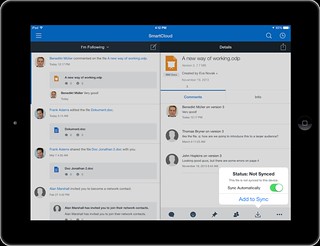
Announcing the IBM FIle Viewer for IBM Connections

View Comments
Looking desperately for that important file? Don't want to download files unnecessarily just to see if it has the content that you need?

Today, that problem is gone. We have just made available a high-fidelity file viewer for all IBM Connections customers. As you may know, this was already available to Connections customers in the cloud and IBM Docs customers on premises. Today, all IBM Connections customers have access to a high-fidelity filer viewer.

The viewer allows you to see the entire contents of the file, present in full screen mode, and print without having to download to your desktop saving you time and space! The viewer will render PDFs, OpenOffice formats (odt, odp, and ods) and Microsoft Office formats (doc[x], xls[x] and ppt[x]).


Note: in the screenshot above you would only see the "Edit" button if you have purchased IBM Docs.

To get the viewer, you can get it from our app catalog, here.

Tuesday, March 22, 2011

How To Customize the CKEditor in Quickr for Domino

View Comments

Last week I was asked how to customize the rich text editor that's embedded in Quickr for Domino. For those of you who don't know, the rich text editor included in Quickr for Domino is CKEditor.

So back to the task at hand. The request that I got was how to add the HTML source view to the rich text editor. The HTML source view allows someone with HTML knowledge to go in and customize the HTML or even used advanced HTML code to add more advanced content to the page.

I remember that I'd seen this tip out somewhere so I reached out to the social web. I eventually found out that the tip was shared in the Skype Quickr chat. This is a group chat of IBMers, business partners and customers who are all interested in Quickr. I believe the chat was initiated by Stuart McIntyre who also runs the Quickr Blog.

In the chat I found my answer and I figured I would share it with you in case you ever need something similar.

To add the Flash toolbar button to insert movies into the rich text editor:

Make the following change to this file:

data\domino\html\qphtml\html\common\qrdconfig.js

in Line 111 change from:

['Image', 'Table','Link','Smiley'],

to

['Image', 'Flash', 'Table','Link','Smiley'],

To add the HTML source view into the rich text editor:

in Line 119 change from:

['HorizontalRule', 'SpecialChar', 'Blockquote','Anchor']

to

['HorizontalRule', 'SpecialChar', 'Blockquote','Anchor', 'Source']

An Alternate Method

The method above has one difficulty... it must be re-applied every time you install a fixpack. Rob Novak has shared with us an alternate approach that won't get overwritten each time you install a fixpack:

-=-=-=-=-=-=-=-

Here's how to do this without being susceptible to fixpack overwrites. Quickr Domino, being based on Dojo 1.3.2 and using widgets to render itself, now has a widget registry that is extensible. You can modify a file called widgetRegistryConfig_ext.js in order to instruct Quickr to use alternate widgets. So instead of changing the qrdconfig.js one directly, you can modify this file and tell it to use your own.

The easiest way to do this is to find the widgetRegistryConfig_ext.js file which is initially empty and located in:

data\domino\html\qphtml\widgets\resources\

Then, make a copy of the above referenced qrdconfig.js in another location relative to the html directory, such as:

data\domino\html\snapps\

Make the modifications to the COPY of the file you just made as indicated in your post - not the original.

Next, we need a controller to tell it to load our copy, so we copy over the file:

data\domino\html\qphtml\widgets\page\field\ckRichText.js

Into our new directory structure:

data\domino\html\snapps\widgets\page\field\chRichText.js

How do we override it? By using Dojo's provide-require-declare methodology (long subject) in our copy of this file. Near the top, just before the renderedit: function() we add the following:


dojo.provide("snapps.widgets.page.field.ckRichText");

dojo.require("quickr.widgets.page.field._ckRichText");

dojo.declare("snapps.widgets.page.field._ckRichText", [quickr.widgets.page.field._ckRichText],

Then the rest of the code remains standard until the end where we add the following:

dojo.declare("snapps.widgets.page.field.ckRichText",
[snapps.widgets.page.field._ckRichText],
{


}
);


So now we've told Quickr to a) use our ckEditor.js file, and b) consume our qrdconfig.js file, all we have left is to tell the widget registry it all exists. So we use the widget registry to force it to load the copy whenever it encounters the instruction to load the original. Add the following code to widgetRegistryConfig_ext.js (remember it was blank before):

{
registerWidgets: [
{
type: 'REGISTERMODULEPATH',
name: "snapps",
path: "/snapps"
},
{
type: 'GLOBALREPLACE',
source: "quickr.widgets.page.field.ckRichText",
use: "snapps.widgets.page.field.ckRichText"
}
]
}

The GLOBALREPLACE type is what does all the magic.

Interestingly, a module path can be an actual path (like the \snapps one we added under html) or it can even be a Domino database to make widgets portable and replicable over clusters

-=-=-=-=-

Enjoy!
Thursday, February 10, 2011

How To Drag-N-Drop Files in Quickr 8.5

View Comments
During Lotusphere #ls11 , and the days after, I've heard the same question a couple of times: what can we done to easily allow files to be drag-n-dropped into a place. This was doable in 8.2 if you were using Internet Explorer since we had an ActiveX control. The ActiveX control allowed you to easily drag-n-drop files from your Windows computer into a place in a snap.
The control, however, had some performance issues and it was highly requested by a vast number of customers that we remove it. In 8.5 we removed the control and we finally were able to build a UI that worked and behaved the same in all browsers that we supported. Our expectation was that most customers would simply use the connectors (which I heard is how 95% of people use Quickr) to achieve this same functionality.
Some customers, however, are wondering how can they get this functionality back. One of our developers from our Dublin lab has documented how to do this in the Quickr Wiki so that you can re-add this capability to Quickr 8.5 as shown below:

Once you follow the instructions, you will have a Java applet which will let you drag-n-drop files into Quickr. As an added bonus, because it's Java, it should work cross-platform. If you need this capability, simply follow the step-by-step instructions here.
Enjoy!

Friday, February 19, 2010

Easily Search Lotus Connections from Google Chrome

View Comments

Lately, I've been using Google Chrome as my default browser to see if I can get used to it. I always considered myself very productive using Firefox, and I've heard so many good things about Chrome that I decided to give it a try. The features that I relied the most on Firefox were the Firebug plugin and searching Lotus Connections directly from the browser. Searching Lotus Connections directly from Firefox was possible thanks to OpenSearch which Lotus Connections supports since v2.5.

Google Chrome comes with a Firebug-like capability already built-in so that was easy. My next priority was setting up Chrome to search Lotus Connections instead of Google ( we all know at this point that Connections is a better search engine than Google, right?). Everywhere I looked, it said that Chrome supports OpenSearch. I couldn't, however, figure out how to add Lotus Connections to Chrome via OpenSearch.

Luckily, there's a way to do it manually (this is how I did it in my Mac. It may be a bit different in Windows):

  1. Open Chrome
  2. Go to Preferences...
  3. Under Basics, you'll see Default Search set to Google. Click on Manage
  4. Click on the + sign to add a new search engine
  5. Set the Name to Lotus Connections, the Keyword to lc and the URL to https://<hostname>/search/web/search?query=%s (for example: https://w3.ibm.com/connections/search/web/search?query=%s). It should look like this:


  6. Click Ok
  7. Optional: Select it and click on Make Default
  8. Close the Preferences panel.

If you didn't set Lotus Connections as your default search engine, here's what you do. Say you want to search for "enterprise2.0 software". In Chrome's omnibox, type "lc enterprise2.0 software" (w/out the quotes) and press Enter. And voilá, you've now searched Lotus Connections directly from the browser without needing to open Connections first and logging in.

Enjoy!

Wednesday, January 27, 2010

Bookmark simultaneously to Lotus Connections and del.icio.us

View Comments

Earlier today I received a ping from one of my favorite customers. He showed QuixApp a nice bookmarklet that basically lets you do whatever you want. He thought this would be a good idea, for example, to create a bookmarklet that would simultaneously bookmark a page both in Lotus Connections and in del.icio.us.

I immediately answered that this has been available for a while, internally at IBM. The following bookmarklet was created by Sacha Chua and if you are browsing an internal page (e.g. w3.ibm.com/....) then the page is only bookmarked in Lotus Connections. If you are browsing an extranet site (e.g. www.cnn.com... ) then the page will be tagged in both services (you don't want internal/confidential pages to be accidentally saved to del.icio.us, right?).

Before you can use it with your own Lotus Connections deployment, you'll have to customize it a bit. Once you look at the code, you'll see something like this:

if(!location.href.match('.ibm.com'))

The first step is to change that from .ibm.com to whatever your company's hostname is. Next, you'll want to change the Lotus Connections URL. In the code you'll see something like this:

var%20h='http://w3.ibm.com/connections/dogear';

Again, change that to match the deployment of your organization and voilá.

IBMers: Drag and drop it to your bookmarks bar: tag this

According to Sacha, the bookmarklet builder was very handy during the creation of this bookmarklet.

Friday, October 9, 2009

Cool new plugin for Lotus Connections

View Comments

For some time now, we've had a plugin available internally that enhances the navigation experience within Lotus Connections. It actually requires Firefox, so if you are still using Internet Explorer, well, don't. It's an archaic browser and all it does is reduce your productivity.

Ok back to topic. The developer of the plugin, Brett Johnson, has decided to make it available via userscripts.org. What does it do? Well, the plugin injects a drop-down menu in the top navigation bar. The menu 'discovers' what's behind those links and then dynamically presents you a sub-menu with available options. That way, if you know where you are going, you can get there in 1 click, instead of 3-4.

I strongly recommend that you all download and install this plugin, but be aware that it may make Lotus Connections even more addictive. To download and install the plugin, go here.

Updated 10/Oct/2009 - Note: As pointed out by Mitch: if you are using outside of IBM you need to change the scripts config from *ibm.com/profiles to *domainname/profiles etc. etc. for each feature.

Monday, September 29, 2008

OpenSearch Integration for Lotus Connections

View Comments

200809262042.jpgA while ago, I noticed that one of our competitors uses OpenSearch to provide quick, easy integration with the browser. You see, any page that implements this specification will automatically show up in browsers such as Mozilla Firefox v2+ and Internet Explorer 7 (see the screenshot). Searching social data from the browser is very powerful because it encourages adoption. If a search doesn't return the expected results, all a user has to do, is change the search engine in the browser and re-submit. Easy. Simple.

Not to be outdone, I decided to read the specification and see how complicated it would be to add this to Lotus Connections.

Turns out, it's a 15 minute task! Basically, you create one XML file for each search capability you want to provide. As an example, I created 6:

Each file looks roughly like this. If you want to use them on your deployment, simply change the host name as shown in the screenshot below. If you want to add more, simply do the search you want to provide and then copy the URL format to the template section.

200809262034.jpg

To add this to Lotus Connections, follow this simple process:

  1. Copy the files above to <DOC_ROOT>/search ( e.g. /opt/IBM/HTTPServer/htdocs/en_US/search or C:\IBM\HTTPServer\htdocs\en_US\search)
  2. Go to <WAS_PROFILE_ROOT/installedApps/<CELL_NAME>/Activities.ear/oawebui.war/WEB-INF/jsps/html_prototype/fragments/mainpage
  3. Save a backup of setupajax.jsp
  4. Open setupajax.jsp with your favorite text editor
  5. Add the following lines inside the <HEAD> section of the file

    <link rel="search" type="application/opensearchdescription+xml" title="Search Profiles by Name" href="/search/searchProfilesName.xml">
    <link rel="search" type="application/opensearchdescription+xml" title="Search Profiles by Tag" href="/search/searchProfilesTag.xml">
    <link rel="search" type="application/opensearchdescription+xml" title="Search Activities" href="/search/searchActivities.xml">
    <link rel="search" type="application/opensearchdescription+xml" title="Search Blogs" href="/search/searchBlogs.xml">
    <link rel="search" type="application/opensearchdescription+xml" title="Search Communities" href="/search/searchCommunities.xml">
    <link rel="search" type="application/opensearchdescription+xml" title="Search Dogear" href="/search/searchDogear.xml">

  6. Save and close the file
  7. Repeat steps 3-6 for the following files:
    • Blogs.ear/blogs.war/themes/blog/_header.vm (and for each theme)
    • Communities.ear/tango.web.ui.war/WEB-INF/jsps/html/tiles/frameworkHeader.jsp
    • Dogear.ear/dogear.webui.war/h3/jsp/main/h3.jsp
    • Profiles.ear/peoplepages.war/WEB-INF/jsps/html/tiles/frameworkHeader.jsp
    • Homepage.ear/dboard.war/web/jsp/main.jsp

And there you have it! You may want to change the code above just a bit so that, for example:

  • when you are in Profiles only the Profiles search shows up
  • when you are in Blogs, only the Blogs search shows up
  • etc...

That's left as an exercise to the reader.... For now, follow these simple steps and you can start searching across Lotus Connections from your browser!!

Monday, July 14, 2008

Does the lack of browser support drive you crazy?

View Comments

The other day I discovered PlanetLotus via Twitter. By the way, if you are a Lotus employee, evangelist, tech sale, seller, user, fan, etc, you HAVE to bookmark PlanetLotus. The creator of this site is Yancy Lent who has his own external blog.

As I read Yancy's blog, I found an entry called: "A screenshot of your web page from 64 browsers and 4 OS's" and in it I learned about browsershots.org!

The way it works is that you simply enter a URL and the site gives you the screenshots of how it would look like from 64 browsers and 4 different OS's. I entered my external blog's URL and discovered that my blog doesn't quite work well in MSIE v5.5 (but what works in that browser, anyway?). Also, Epiphany on Ubuntu is really bad combination for my blog.


200807141513.jpg

Isn't social software cool ??

Anyway, I really think that all major software companies, Lotus included, should look into this technology so right off the bat we can support 64 browsers on 4 OS's. Currently, when a product ships, it usually supports 2-4 browsers (unless it's a MS product, then only 1 browser is supported), based on what the testers had time to test with. Using this technology, we can quickly and efficiently see how products behave on the different browser and OS combinations that are out there! Food for thought....