Pages

Showing posts with label configuration. Show all posts

Thursday, November 14, 2013

Tip: How to Change the Default View of Community Events

View Comments
The other day I was asked how to change the default view of the Community Events app within IBM Connections.

For example, instead of coming into the list view of events, you may want to come into the grid view.


If that's the case, your admin can go in and make the following change to the widgets-config.xml file:

..
<widgetDef defId="Calendar" primaryWidget="false" showInPalette="true" description="calendarDescription" modes="view edit fullpage search" uniqueInstance="true" url="{communitiesSvcRef}/calendar/Calendar.xml?version={version}" iconUrl="{webresourcesSvcRef}/web/com.ibm.oneui3.styles/imageLibrary/Icons/ComponentsGray/CalendarGray16.png" helpLink="{helpSvcRef}/topic/com.ibm.lotus.connections.communities.help/community_events_frame.html"> <itemSet> <item name="calendarRoot" value="{communitiesSvcRef}/calendar" /> <item name="communitiesBaseUrl" value="{communitiesSvcRef}" /> <item name="defaultView" value="grid" /> <item name="version" value="{version}" /> ..

For more information on how to modify this file, please read the instructions here. And that would do it!!

Thursday, April 25, 2013

Demo: Deep Dive of IBM Connections Content Manager 4.5

View Comments

The Information Development team has created this video to take a deep dive into IBM Connections Content Manager 4.5 which was released a little over a month ago.

Earlier I had shared a high level demo of IBM Connections 4.5 so if you missed that, or you are looking for more details specifically around Connections Content Manager (CCM), then this is the demo for you. Here are the features you will see:

  • Upload and sharing files
  • Configuring library settings like draft approvals, document types and metadata, etc
  • Saving files as drafts
  • Configuring access to files
  • Searching by document types
  • Refine search by custom metadata
  • Tagging, liking, commenting on files
  • Approving / rejecting a document

Check out the 6 minute video below:

Enjoy!

Tuesday, July 31, 2012

How To Customize the IBM Connections Mobile App for iOS, Android & BlackBerry

View Comments

Today IBM has published documentation on how to customize the mobile apps for IBM Connections. To customize the mobile apps, you need to have IBM Connections 3.0.1.1 CR2 installed (which you can get from here). As the IT admin, you have the control on the following settings:

  • Allow iTunes Sharing - whether iOS users can transfer files to the app via iTunes
  • Allow Web Sharing - whether uses accessing Connections via a browser should be re-directed to download the native app
  • Remember Password - whether to allow end users to store their passwords in their device
  • The ability to enable/disable different components of Connections (e.g. enable Files but disable Wikis)
  • For Files, there's a set of additional configuration options:
    • Encryption - whether downloaded files should be encrypted
    • Allow Upload/Download
    • Allow Export - whether downloaded files can be shared with other apps/folders
  • The name of the app and module can be fully configured
  • SSO authentication options (Siteminder, SPNEGO, etc)
  • Ability to add new applications to the app

If you haven't seen them yet, I've recorded a demo showing the latest Android and iOS apps. Here they are again.

iOS (iPad):

Android:

To access the documentation, click here http://www-01.ibm.com/support/docview.wss?uid=swg21606189

Friday, April 13, 2012

How To Add a Web Meeting Link to IBM Connections Profiles

View Comments

All credit here goes to Mitch Cohen for the idea. As I've been updating my demo server this week to record a video on it, it turns out that Mitch asked how to add an attribute to IBM Connections Profiles so that it would be a clickable link to a user's web meeting (whether it's SmartCloud Meetings, VSee, WebEx, etc).

The process for adding a custom attribute to Profiles is documented here, but let me just show you how to do it specifically for web meetings. In the example below, I'm going to focus on SmartCloud Meetings, but if you want to do it for WebEx, for example, it should be very straightforward to modify the configuration that I present below:

  1. Check out profiles-config.xml
  2. Open profiles-config.xml with your favorite text editor
  3. Add the following line under the <profileDataModel> - <profileExtensionAttributes> section:

    <simpleAttribute extensionId="meetingId" length="64" />


  4. Now scroll down to the <profileLayout> - <jobLayout> section (or to the <contactInformation> section depending on where you want to add it) and add the following line:

    <extensionAttribute showLabel="false" prependHtml="&lt;a href='http://apps.lotuslive.com/meetings/join?id=" appendHtml="'&gt;Join My Meeting&lt;/a&gt;&lt;br/&gt;" labelKey="label.contactInformation.extattr.meetingId" editable="true" bundleIdRef="myStrings" extensionIdRef="meetingId" />


  5. If you want, you can also add it to the businessCard section so that it appears every time a business card is shown.
  6. Save and close the file
  7. Check it back in
  8. Restart Connections

Once you restart the server, you'll see something like this show up for people who have defined their Meeting ID by going into Edit My Profile.


Now if I were to pull up Jasmine's profile, I'll always be a click away to her virtual meeting room. Clicking on the link immediately launches the web meeting and I don't have to do anything else. Very easy!

Enjoy!

Thursday, April 12, 2012

How To Extend Search in IBM Connections

View Comments

I'm currently making modifications to my IBM Connections server to record a demo that I've been wanting to do for a week or so now. As I was making some changes, I realized that there was a new feature that was introduced in IBM Connections 3.0.1 that I may have not talked about.

Basically, the IBM Connections search box is extensible so that you can add 3rd party search providers. Say, for example, that you have deployed IBM Connections inside of the firewall and you want to give your users not only the ability to search within Connections, but perhaps integrate with your intranet search engine (e.g. Omnifind, Google Search Appliance, Fast, etc). Or maybe you have deployed Connections outside of the firewall and you want to integrate with your extranet search or provide the ability to do a Google search (or Bing, Yahoo, Quora, etc.).

Well, there's an extension for that and it's pretty easy to set up and no coding is required. Once you set it up, the additional search capability is made available to the end users and now from IBM Connections they can do searches that are handled by 3rd party providers. Very cool, huh?

Here's how it looks:


To set it up, simply follow the instructions here and off you go: http://www-10.lotus.com/ldd/lcwiki.nsf/dx/Adding_thirdparty_search_options_to_the_search_control_ic301 . In my demo environment, my intranet search is provided by Portal, so here's the URL format that I used to search Portal from IBM Connections: http://showcase1.demos.ibm.com/wps/myportal/SmarterPlanet/?uri=searchCenter%3Aquery&layoutNode=ibm.portal.Search%20Center%20Portlet%20Window&contentNode=ibm.portal.Search%20Center&query=social (of course, you'll have to update the URL based on your server name and address).

If you weren't aware of this, take advantage of it today!

Enjoy!

Tuesday, February 21, 2012

New Quickr Domino 8.5.1 FP Released - You'll Want This

View Comments
As promised at Lotusphere 2012 #ls12, we have now posted a new Quickr Domino fix pack for 8.5.1. You can find this fix pack in Fix Central or go directly here.

At Lotusphere, we announced that the fix pack would be ready in the first quarter of 2012, and I'm glad that we were able to get this out the door today. The IBM Lotus Quickr Fix Pack 8.5.1.25 for Domino release delivers several features highly requested by Quickr users:
  • Addition of the Folder Navigator for libraries with deep folder hierarchies and the Index
  • Improved preview for Microsoft Office file attachments and imported pages
  • Support for importing HTML
  • Display of an attachment's last modified date on Attachments tab
  • Simplified place creation process that eliminates the requirement of reauthentication
  • The ability for editors and authors to create folders in a place.
  • Support for Internet Site documents

To read what's new in this release in detail, check out What's Enhanced in Quickr Domino 8.5.1 FP 25. This fix pack includes all fix packs up to FP 13.

Now all hands on deck to finalize the next release for later this year.

Wednesday, May 11, 2011

How To Dynamically Change the Connections Theme

View Comments

Yesterday I got a question from a customer who was looking to revert the Connections 3.0.1 theme back to the Connections 2.5 theme. Part of the reason why they wanted to do this was because they were running Quickr 8.5 and they wanted to have some visual integration of the two. At first I thought this was going to be a daunting task, so I asked in my internal board. Within 2 minutes a discussion started and in less than 60 minutes I had my answer! (can you tell why I love this stuff??):


I'l spare you the details of the discussion, but the important thing to note is that the 2.5 theme is included as part of 3.0.x. So basically, there are two approaches. You can create a button that when clicked calls the method specified by David above. You can also do it manually and test it against Greenhouse by following these steps:

  1. Go to http://greenhouse.lotus.com/homepage
  2. Log in
  3. Once logged in, type the following in the address bar and press Enter: javascript:lconn.core.header.switchTheme('gen1');
  4. Voilá

Alternatively, the second approach is to make the 2.5 theme the default for all users. Here's how you do this:

  1. Go to the server where Connections is installed
  2. Create a directory called: <CONNECTIONS_ROOT>\data\shared\customization\common\nav\common\styles\defaultTheme
  3. Copy all the files from <WAS_PROFILE_ROOT>\installedApps\showcase2Cell01\Activities.ear\oawebui.war\nav\common\styles\gen1Theme
  4. In the directory specified in step 2, rename the gen1Theme*.* files to defaultTheme*.* (e.g. rename gen1Theme.css to defaultTheme.css)
  5. Restart Connections
  6. Voilá

Enjoy!


Monday, September 28, 2009

Checking for viruses in Lotus Connections

View Comments

I'm working with a customer right now that wants to deploy Lotus Connections externally (i.e. outside of the firewall). I got an interesting question for them and didn't see the answer documented in the InfoCenter. Therefore, I decided to post it here in case I need to reference it later (or in case it's valuable to you).
The question was around viruses in file uploads. Since this will be available in the internet they were concerned about users who may inadvertently (or knowingly) upload a file. Out of the box, Lotus Connections supports antivirus services that work on ICAP (Internet Content Adaptation Protocol) 1.0 such as McAfee Web Security Appliance and Symantec Scan Engine. How to configure the antivirus for Lotus Connections is documented in the InfoCenter.

However, it's not clear what happens when an infected file is uploaded. Is it automatically deleted? Is the admin notified? Is the user notified? etc. Therefore, I asked one of our developers and got the answer. Action on the file actually depends on how the antivirus system itself is configured. If the antivirus system is configured to clean the files, then the files will be cleaned and then saved normally. If the antivirus is configured to delete infected files, then the file is never saved by Lotus Connections. Regardless, the user is notified of an error while uploading their file.

Now you know

Friday, February 27, 2009

How To Change The Login ID For Lotus Connections

View Comments

Yesterday, I worked with a client to configure Lotus Connections to use a different ID for authentication. By default, Lotus Connections authenticates with either the user's email address or the user id.

Typically this involves a two step process:

  1. Configure WebSphere to use a different LDAP attribute for authentication
  2. Re-populate the Lotus Connections Profiles database to put in a new value for PROF_UID

We didn't want to do this because we wanted to minimize impact to the existing environment. Additionally, we had the challenge that the attribute that the customer wanted to use for authentication was a non-standard attribute (something called aintsouserid). Therefore, I suggested we use a new feature in Lotus Connections v2. In v2, the developers were kind of enough to add an extra column to the Profiles table: PROF_LOGIN. Whatever you put in there, can be used by Lotus Connections for authentication.

So here's what we did to configure Lotus Connections to authenticate using a new value without doing too much work:

  1. Followed the details on specifying a custom LDAP ID for Lotus Connections in the Lotus Connections InfoCenter. (we only followed steps 1-4). We followed these steps so WebSphere could recognize what aintsouserid was.
  2. Modified the WebSphere configuration to use aintsouserid as the attribute for login. (basically, step 9 from this article).
  3. Modified the TDI configuration (map_dbrepos_from_source.properties) to map PROF_LOGIN to aintsouserid
  4. Re-ran TDI to populate the PROF_LOGIN data for all users

And voilá. Hope this helps!

Monday, February 9, 2009

How To Enable the Lotus Connections Person Card in Notes 8.5

View Comments

Friday, was a VERY long day. I'm going to quickly summarize what I've been up to and why I've been seemingly disconnected from Twitter. The good thing is that there are lessons learned that I would like to capture here for various reasons:

  1. So that I don't make the same mistake again
  2. So that others can benefit from my mistakes

Let's start with the fun stuff first. A customer wanted to know how to enable the Lotus Connections person card in Notes 8.5. Not sure why, but for some reason this capability is disabled out of the box. To enable, follow these steps:

  1. Go to C:\Notes\framework\shared\eclipse\plugins\com.ibm.openactivities.client.common.service_3.5.0.20081211-1925
  2. Make a backup of plugin.properties
  3. Open plugin.properties with your favorite text editor
  4. Scroll to the bottom of the file and find this line:

    bizcard.show=false
    

  5. Replace it with

    bizcard.show=true
    

  6. Save the file
  7. Close and restart Notes

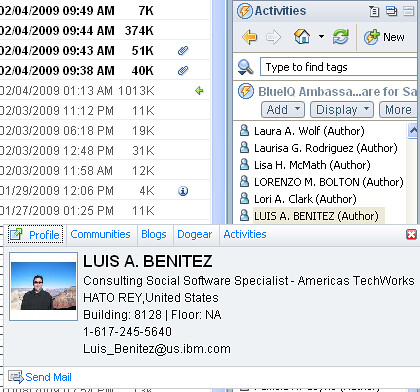
Now when you are in the Activities sidebar and look for people, simply hover over them, right click and the person card will show up as shown below!


Mac users: If you are using my hack, this should have already been done for you.

Enjoy!

Monday, December 8, 2008

How to Allow Lotus Connections Profiles to Accept PNG Images

View Comments

A customer recently reached out and told me that Lotus Connections Profiles was only accepting images (or photos) in GIF and JPEG format. He had a need, however, to allow end users to upload their photos in PNG format.

You may be thinking that in order to allow this, I had to hack away the code, change some JSPs files, add a lot of Java code, and the such. Au contraire, my friend! Here's what I had to do to enable PNG photo uploads in Profiles:

  1. Go to <WAS_PROFILE_ROOT>/installedApps/<CELL_NAME>/Profiles.ear/peoplepages.war/WEB-INF
  2. Save a backup of validation.xml
  3. Open validation.xml with your favorite text editor
  4. Find this line (it's there twice):

    <var-value>image/jpeg,image/pjpeg,image/gif</var-value>


    and add the following lines after it:

    <var-value>image/jpeg,image/pjpeg,image/gif,image/png,image/x-png</var-value>


  5. Remember, this line appears in two places so make sure you edit both lines
  6. Save the file
  7. Restart the system

Don't you love it when the architecture for a product allows you to do easy things like this ? I do..

P.S. In case you are wondering about the two MIME types.. Firefox uses image/png and IE uses image/x-png. Go figure ...

Tuesday, October 14, 2008

Oh, SSL, why are you so hard ?

View Comments

This is a summary email that was sent to me by a colleague after fixing a SSL issue he was having in his deployment. I'm capturing it here so I can refer to it later, and in case it helps you as well.


This is a different certificate problem than the one you folks encountered back in May of this year. That one produced an "Internal Server Error" in the browser when attempting a redirected login and had a corresponding "GSK_ERROR_BAD_CERT(gsk rc = 414)" message in the log. That was a case of a new certificate that didn't have a trusted signer. This particular problem resulted from a certificate that had a trusted signer, but recently expired and produced different symptoms.

Symptoms:

When passing from a logged-in user's Portal page to a Connections page (ie. Portal kicking off a new browser window to open, say, Activites using SSO), the notorious "Page can not be displayed" message appeared.

In the log, C:\IBM\HTTPServer\logs\error.log ,you see this error message:
"SSL0221E: SSL Handshake Failed, Invalid date."

In hindsight, this one's easy to figure out but it took an inexperienced person like me a while to track and confirm it. It means there is an expired certificate in use ... dates in a certificate are no longer valid.

Cause: Expired certificates

Using the key management utility (IKEYMAN), open the Key Database file C:\IBM\HTTPServer\bin\key.kdb and view the default Personal Certificate called "demoibm". It expired on June 26, 2008. Similarly when you look at Signer Certificates and open up "WebSphere Extracted Cert", you will find that also expired on June 25, 2008.

Solution

1.) Since the one and only certificate being used in the key database was now expired, it seemed to me that generating new certificates and continuing to manage an additional KDB was pointless, so I chose to use the already valid keys in this key database already in use by the web server:

C:\IBM\HTTPServer\Plugins\config\webserver1\plugin-key.kdb .

I redirected to that plugin-key.kdb by changing C:\IBM\HTTPServer\conf\httpd.conf as follows:

#Enable SSL for Lotus Connections
LoadModule ibm_ssl_module modules/mod_ibm_ssl.so
LoadModule rewrite_module modules/mod_rewrite.so
#KeyFile "C:\IBM\HTTPServer\bin\key.kdb"<---- this was the old reference that I commented out
Keyfile "C:\IBM\HTTPServer\Plugins\config\webserver1\plugin-key.kdb"
SSLStashFile "C:\IBM\HTTPServer\Plugins\config\webserver1\plugin-key.sth"
Listen 0.0.0.0:443
<VirtualHost *:443>
ServerName connections.demoibm.com
SSLEnable
SSLProxyEngine on
RewriteEngine on
# Keep website (/html) on http for perf
RewriteRule ^/dogear/html(.*) http://connections.demoibm.com/dogear/html$1 [noescape,L,R]
#Put everything but login and api back to http
RewriteCond %{REQUEST_URI} !^/blogs/services/atom(.*)
RewriteCond %{REQUEST_URI} !^/blogs/roller-ui/login.do
RewriteCond %{REQUEST_URI} !^/blogs/j_security_check
RewriteRule ^/blogs/(.*) http://connections.demoibm.com/blogs/$1 [noescape,L,R]
</VirtualHost>
SSLDisable

2.) Along with changing the HTTPD.CONF file, I did the certificate insertions into the signer certificates of the CMSKeyStore as described in the technote from that other GSK problem: GSK_ERROR_BAD_CERT error configuring SSL between Plug-in and Application Server V6.1 I simply exported all three "default_x" personal certificates then imported (added) them to the signer certificates of the CMSKeyStore. (Before executing the instructions in that technote, see the note below about disabling security so you can use the WAS Integrated Solutions Console.)

2a.) Important note: Because authentication does not work due to the expired certificate, you can not successfully log into the WAS Integrated Solutions Console until you manually disable security. To do that, modify this file C:\IBM\WebSphere\AppServer\profiles\AppSrv01\config\cells\connectionsNode01Cell\security.xml. Look for the following text at about the fifth or so line down and change "enabled" to be "false" as shown in blue below.

useLocalSecurityServer="true" useDomainQualifiedUserNames="false" enabled="false" cacheTimeout="600"

After saving and closing security.xml, you will need to restart the Connections server. Upon return, start the Integrated Solutions Console with the URL "https://connections.demoibm.com:9043/ibm/console/logon.jsp" and just click the Log in button without entering user credentials.

3.) Upon completion of the work needed to be done in the Integrated Solutions Console, don't forget to go back and modify the security.xml and set "enabled=true" and restart the Connections server so security is properly invoked.

Final Note: Aside from the ISC admin console, directly logging into the Connections sever did not seem to work. Redirecting to it from a logged-in Portal page as described in the "Symptom" section above gets you to Connections authenticated via SSO. This behavior was observed even before the certificate expiration problem arose. Going through this exercise only restores it to it's pre-expiration condition which means you still can not directly login.

Lastly, I know much of this is in different pieces of the doc but I personally found the info in this posting in the Lotus Connections Forum to be useful as a newbie.