I'm still in the process of collecting data and measuring the adoption within the organization. Thus, wanted to start with my own experience and document my growing pains so far. One of the first things that I noticed is the breakout of apps and getting used to when to use what. For example for chats, I could do 1:1 messages over Skype, Teams, Yammer, and of course email. To see what's going on across the organization, I could use Newsfeed, Yammer, or Delve. To keep track of tasks, I could use Planner, Tasks, or OneNote. There's a 60-page white paper that explains when to use what, but this seems like a big area for Microsoft to look at consolidating.

So here's my experience so far with some of these apps.
Outlook
After using Notes/Verse for about 15 years, the transition to Outlook was "interesting". I do like the meeting forward feature. Makes it easy to get others added to an invite, instead of having to ask the meeting owner to add others. Of course, it's also happened where people I've invited to a meeting have forwarded the invite to others without my consent 😁. I also like scheduling Skype meeting directly from within Outlook.
Here's a few things I struggled with (in no particular order):
Here's a few things I struggled with (in no particular order):
- Getting used to tons of open windows - in Notes, emails opened within the same app by default and it didn't clutter your desktop. In Outlook (at least on Mac) there's windows everywhere!
- Distribution lists - there doesn't seem to be a way to build my own public distribution lists. They have the concept of Groups, but emails sent to a Group doesn't come into the inbox, it goes to another separate inbox so people miss them.
- Delegation - I was used to easily delegating meetings to other people. Within Outlook, I need to forward an invitation, and then decline the invite so the person knows I'm not going.
- Emojis - This may be a simple one, but for some reason the emojis seem to get lost when sending/receiving messages. A happy face, for example, is converted to J . It took me a while to figure out why people were putting J's in their emails. 😉
Skype
This is one that I've struggled with the most. At the end of the day, Skype for Business is the same Lync client, just re-branded so that's probably why the experience is not the best. I was expecting the actual consumer version of Skype. My pain points:

- I have a million "conversations" with the same person (see above). This seems to be the biggest pain point that Skype for Business users are reporting. This is horrible as the conversation for some crazy reason is broken into multiple chats. Notice above how my conversation with Mara, which happened in a span of 20 minutes, is broken into 3 different conversations. Thus, when I'm trying to find what one person and I talked about, I have to dig through multiple conversations to find what I need. Ugh!!! Microsoft Teams 1:1 chat addresses this. Similarly, Sametime, a contact was just a contact and it was a lot simpler to browse the chat history.
- I can't paste images into a conversation - this seems to be a Mac limitation
- Video calls are flaky - Microsoft Teams has been better in my experience so far
- Missed conversations emails - An interesting feature that Skype has is that if you "miss" a conversation, you get an email alerting you. However, it's happened way too much that I'm online and connected and engaged, and yet somehow I get an email that I missed a conversation when I really didn't.
Teams is the latest app that Microsoft has added to Office 365. It competes with the likes of Slack IBM Watson Workspace. I decided to give Teams a try and get my team engaged in it. One of the capabilities that I like is the integrated Planner module where I've built kanban boards to keep track of high level project status.

The integrated video meeting experience is really great as well, in fact, I like it a lot more than the Skype for Business experience. You can take a "typed" conversation to a "visual" conversation very easily and still remain in context.
Some improvements I would like to see:
- Planner on mobile - Right now, the Teams mobile app for iOS doesn't allow me to see/manage tasks on mobile. Also, Planner on Teams doesn't work well with the standalone Planner app in Office 365. New tasks/boards created in Teams don't show up in the Planner hub forcing me to check two different places for a consolidated view.
- Stability for the desktop app on Mac - The desktop app for Mac is built on Electron so at the end of the day it's just a web browser wrapped in a rich desktop app. For some reason, it's still very flaky. For example, when I switch to the Planner tab in a team, it seems to hang. Other times, the app doesn't start correctly and I've had to re-install several times.
- Native notifications - as notifications come in, Microsoft doesn't seem to be using native notifications on Mac OS X so if I step out and come back, I can't see what I missed within Notification Center
- Threaded replies usability - We are still getting used to threaded replies. Right now, it seems very confusing as sometimes people reply to the thread and other times they just reply as a new message. At the same time, when a new reply comes in to a thread, it moves within the conversation and it breaks the flow of other conversations.
- Awareness usability - Notifications don't seem to be reliable at the moment as the team constantly reports that they miss out on new activity and since things move around in the conversation, it makes it hard to understand when someone will get notified of a new message. @mentions seem to be the best way to drive awareness of new content.
- Single version of the truth - sharing a OneDrive file into a Team creates another copy of the file and saves it in the Team's file repository. This makes it complicated as now we have to manage two copies of the file and manually keep them in sync. Ideally, sharing a OneDrive file into the team, gives the team access to the file providing a single version of the truth.
I also like some of the top ideas requested by users for Teams.
OneDrive for Business
It looks like Microsoft has been improving their OneDrive client recently. I've been able to sync my personal OneDrive and SharePoint sites to my Mac seamlessly. Some things could still be improved:
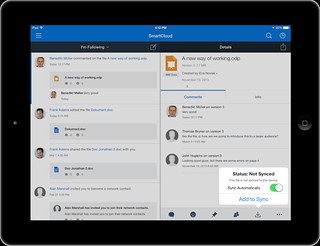
- Sharing files from desktop - I'm used to right-clicking on a file and being able to share a file with a colleague. With OneDrive, you are forced to open a browser, log in, find the file and then share it from there. IBM Connections, Box, and others have had this for a long time so Microsoft is behind on this one.
- Cloud file sync improvements - From within PowerPoint, Excel and Word, you can share a file with others, BUT not if you open the file directly from Finder. You need to again, open a browser, log in, find the file and choose "Edit in PowerPoint" (for example) so that the file opens from the cloud. It would be a lot better if PowerPoint detected that I'm opening a file from Finder that's being already synced to OneDrive/SharePoint.
- Copy link to OneDrive files - This is another one that kills me... Sometimes I'm in a Skype or Teams chat and I want to paste a link to a file. I'm used to right-clicking on a file directly from Finder and getting a link to a file. With OneDrive, I need to open a browser, log in, find the file, then copy the link to the file.
- Finding files shared with me - There doesn't seem to be a view that shows me all files that I have access to. OneDrive has a "Shared with Me" view that only shows individual files where I've been explicitly added as a viewer/editor. However, if a file is in folder I have access to (and hence I have implicit access), those files don't show up there. This makes it hard to go back to a file that I know I have access to, but don't know where it is...
- Commenting on files - Unless I'm doing something wrong, there doesn't seem to be a way where viewers can comment on files. Comments in OneDrive seem to be "inside the file" so therefore, you need to be editor to be able to edit the file and add comments inside the file. This is a flaw since I don't want people to edit files, just review and give me feedback. It would also be nice to have @mentions in file comments.
- File update notifications - As my team works on files, I'm not notified when they make updates to their files or mine. We end up pinging each other or emailing each other to let each other know when a new file update is ready for review.
Surprisingly, none of these seem to be in the top ideas for OneDrive for Business...
---
I'll stop here since this is getting long and it's been quite a brain dump. I want to start playing more with Delve, SharePoint and others and will share more on those later!

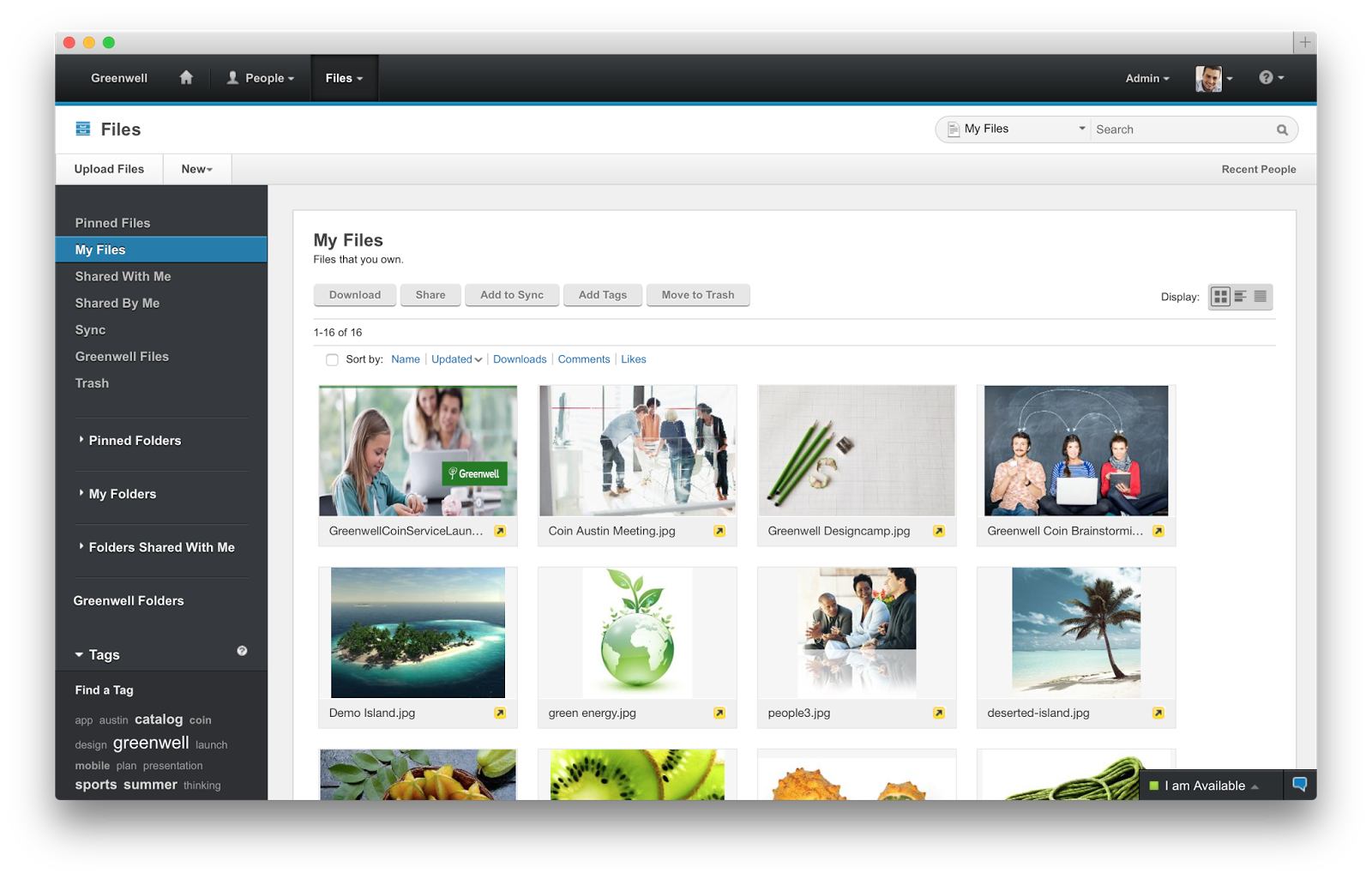
 The press release sums up the latest release of IBM Connections which is