Pages

Tuesday, October 14, 2008

Oh, SSL, why are you so hard ?

View Comments

This is a summary email that was sent to me by a colleague after fixing a SSL issue he was having in his deployment. I'm capturing it here so I can refer to it later, and in case it helps you as well.


This is a different certificate problem than the one you folks encountered back in May of this year. That one produced an "Internal Server Error" in the browser when attempting a redirected login and had a corresponding "GSK_ERROR_BAD_CERT(gsk rc = 414)" message in the log. That was a case of a new certificate that didn't have a trusted signer. This particular problem resulted from a certificate that had a trusted signer, but recently expired and produced different symptoms.

Symptoms:

When passing from a logged-in user's Portal page to a Connections page (ie. Portal kicking off a new browser window to open, say, Activites using SSO), the notorious "Page can not be displayed" message appeared.

In the log, C:\IBM\HTTPServer\logs\error.log ,you see this error message:
"SSL0221E: SSL Handshake Failed, Invalid date."

In hindsight, this one's easy to figure out but it took an inexperienced person like me a while to track and confirm it. It means there is an expired certificate in use ... dates in a certificate are no longer valid.

Cause: Expired certificates

Using the key management utility (IKEYMAN), open the Key Database file C:\IBM\HTTPServer\bin\key.kdb and view the default Personal Certificate called "demoibm". It expired on June 26, 2008. Similarly when you look at Signer Certificates and open up "WebSphere Extracted Cert", you will find that also expired on June 25, 2008.

Solution

1.) Since the one and only certificate being used in the key database was now expired, it seemed to me that generating new certificates and continuing to manage an additional KDB was pointless, so I chose to use the already valid keys in this key database already in use by the web server:

C:\IBM\HTTPServer\Plugins\config\webserver1\plugin-key.kdb .

I redirected to that plugin-key.kdb by changing C:\IBM\HTTPServer\conf\httpd.conf as follows:

#Enable SSL for Lotus Connections
LoadModule ibm_ssl_module modules/mod_ibm_ssl.so
LoadModule rewrite_module modules/mod_rewrite.so
#KeyFile "C:\IBM\HTTPServer\bin\key.kdb"<---- this was the old reference that I commented out
Keyfile "C:\IBM\HTTPServer\Plugins\config\webserver1\plugin-key.kdb"
SSLStashFile "C:\IBM\HTTPServer\Plugins\config\webserver1\plugin-key.sth"
Listen 0.0.0.0:443
<VirtualHost *:443>
ServerName connections.demoibm.com
SSLEnable
SSLProxyEngine on
RewriteEngine on
# Keep website (/html) on http for perf
RewriteRule ^/dogear/html(.*) http://connections.demoibm.com/dogear/html$1 [noescape,L,R]
#Put everything but login and api back to http
RewriteCond %{REQUEST_URI} !^/blogs/services/atom(.*)
RewriteCond %{REQUEST_URI} !^/blogs/roller-ui/login.do
RewriteCond %{REQUEST_URI} !^/blogs/j_security_check
RewriteRule ^/blogs/(.*) http://connections.demoibm.com/blogs/$1 [noescape,L,R]
</VirtualHost>
SSLDisable

2.) Along with changing the HTTPD.CONF file, I did the certificate insertions into the signer certificates of the CMSKeyStore as described in the technote from that other GSK problem: GSK_ERROR_BAD_CERT error configuring SSL between Plug-in and Application Server V6.1 I simply exported all three "default_x" personal certificates then imported (added) them to the signer certificates of the CMSKeyStore. (Before executing the instructions in that technote, see the note below about disabling security so you can use the WAS Integrated Solutions Console.)

2a.) Important note: Because authentication does not work due to the expired certificate, you can not successfully log into the WAS Integrated Solutions Console until you manually disable security. To do that, modify this file C:\IBM\WebSphere\AppServer\profiles\AppSrv01\config\cells\connectionsNode01Cell\security.xml. Look for the following text at about the fifth or so line down and change "enabled" to be "false" as shown in blue below.

useLocalSecurityServer="true" useDomainQualifiedUserNames="false" enabled="false" cacheTimeout="600"

After saving and closing security.xml, you will need to restart the Connections server. Upon return, start the Integrated Solutions Console with the URL "https://connections.demoibm.com:9043/ibm/console/logon.jsp" and just click the Log in button without entering user credentials.

3.) Upon completion of the work needed to be done in the Integrated Solutions Console, don't forget to go back and modify the security.xml and set "enabled=true" and restart the Connections server so security is properly invoked.

Final Note: Aside from the ISC admin console, directly logging into the Connections sever did not seem to work. Redirecting to it from a logged-in Portal page as described in the "Symptom" section above gets you to Connections authenticated via SSO. This behavior was observed even before the certificate expiration problem arose. Going through this exercise only restores it to it's pre-expiration condition which means you still can not directly login.

Lastly, I know much of this is in different pieces of the doc but I personally found the info in this posting in the Lotus Connections Forum to be useful as a newbie.

Friday, October 10, 2008

How to integrate Lotus Connections and Facebook in less than 1 minute

View Comments

200810101325.jpgAs a techie and developer, one of the things that I really appreciate about Lotus Connections, is its ease of use and how fast someone can extend it.

Case in point, a customer recently asked me to add a Facebook widget to the Lotus Connections Home page. I knew there were several Google Gadgets out there for Facebook. Therefore, I followed the instructions on how to run a Google Gadget as a widget in Lotus Connections and created my own Facebook iWidget. Total work effort? 10 minutes.

iWidgets are powerful

Now, because Lotus Connections widgets can be hosted anywhere, I uploaded the widget to my domain. Since the widget has already been "developed" and "deployed", all you have to do is add it to your Connections' Home Page. To use the widget in your Lotus Connections deployment, simply add this widget:

This process literally takes 1 minute and is documented here.

Re-use is such a beautiful thing

Why reinvent the wheel? Why code something that already exists? While other vendors may have an extensible home page where you can add widgets, they force you to code the widget from scratch! You don't have to! Lotus Connections gives you the power to deploy any of the ~45,000 Google Gadgets, that somebody already coded for you!

Let me summarize: 10-15 minutes to wrap a Google Gadget into an iWidget. 1 more minute to deploy that iWidget into the home page. Total effort: ~16 minutes. No coding. No Java. No JSPs. No APIs to learn.Simply 1 XML with 2 lines of code and 1 HTML with 1 line of code.

A true social networking home page is born

By deploying existing gadgets into the home page, you are creating a true social home page. One that provides not only the recent updates from someone's internal social network, but also one that provides the most recent updates for someone's external social network! Now imagine what that's going to do to your adoption rates!! That's right, they are going to skyrocket!

Is Facebook not your favorite external social provider? You don't have 15 minutes to create the iWidget wrapper for the Google Gadgets?

No worries! All you really need is 1 minute! I have wrapped the following Google Gadgets into iWidgets for Lotus Connections:

updated 13/Apr/2009: Other widgets you may be interested on:

Enjoy!

Seeing is believing

Wait, what's that? You still don't believe me that it takes less than 1 minute? Let me show you!! Click here to see a full-screen demo!

What else would you like to see? Let me know and I can expand this Lotus Connections iWidget Catalog!

P.S. The devWorks article is a bit long, but the core of the article is this section. If you follow the instructions in that section, you can get your own Google Gadget up-and-running in 10-15 mins.


Thursday, October 9, 2008

Congratulations to Mac Guidera!

View Comments

Today, I saw a lovely email from Heidi Votaw:


I want to formally announce the addition of Mac Guidera to our team. Mac is joining our team as a Product Manager for Lotus Connections.

200810091508.jpgFor those of you not familiar with Mac he joined IBM Software Service for Lotus (ISSL), in 2006 after having worked as an independent Business Partner focused on Lotus Domino Web application development. As a Senior IT Specialist within ISSL, he was responsible for designing and developing Domino, Forms, Sametime and Quickr specific solutions for customers worldwide. As Lotus Connections emerged in the field, he worked on many of the key projects for ISSL providing architecture and implementation guidance to customers and colleagues. At the same time he began hosting a weekly internal call, the Lotus Connections Switchboard, for the IBM Social Software Community, which provides answers on all things Connections related for specialists throughout IBM. Last year, Mac began working with the Lotus Greenhouse as their Technical Team Lead and helped bring in many of the Lotus technologies that are hosted there today (Lotus Connections being a cornerstone of that environment). He is also very active in the Lotus Community at large with his public facing blog and as a long time presenter at Lotus technology conferences and events.


I'm VERY excited about this change and can't think of a better person to be the Product Manager for Lotus Connections. Mac, congratulations and very well deserved!!!

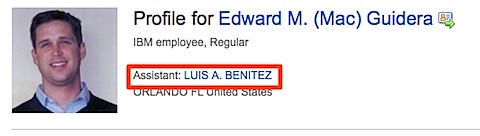
I'm also very proud of this, because Mac couldn't have done this without me. Why? Well, as you can see in the screenshot below, I'm Mac's Executive Assistant. Therefore, if it wasn't because of the super awesome job that I do, Mac wouldn't be as super awesome as he is!


200810091521.jpg

Mac, if you are reading this, when can you start travelling? I have several opportunities that I would like to get you involved in!

How to customize the login page for Lotus Connections

View Comments

I was at a recent customer site, where they wanted to provide a single login screen for all the Lotus Connections modules. Here's the steps that you need to take to customize the login screen.

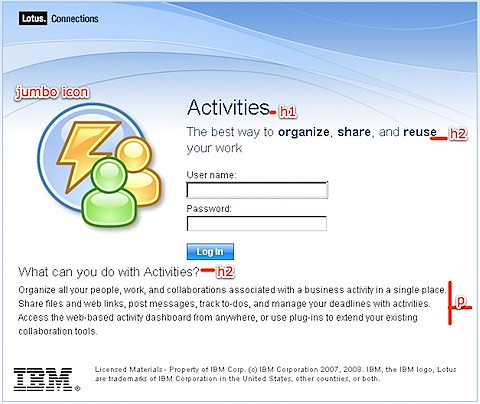
First, let's review how a typical login page looks like:


200810081758.jpg

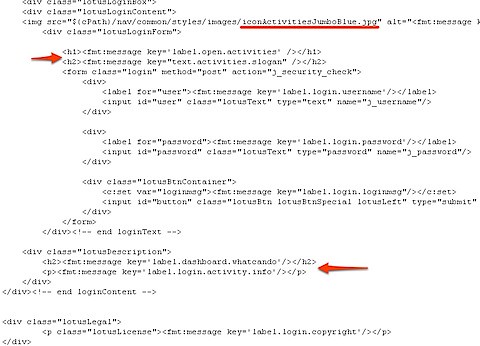
And now, let's take a quick peek at how this looks in code:

200810081800.jpg

The highlighted areas were the ones that I changed. Notice how the system relies on the <fmt:message> tag to translate the text into the different languages. If you are supporting a multi-lingual deployment, you'll have to take the extra step to add/modify the appropriate text in the .properties files.

Here's the location for the files you'll want to change:

  • <WAS_PROFILE_ROOT>\installedApps\<CELL_NAME>\Activities.ear\oawebui.war\auth\login.jsp
  • <WAS_PROFILE_ROOT>\installedApps\<CELL_NAME>\Blogs.ear\blogs.war\roller-ui\security\wslogin.jsp
  • <WAS_PROFILE_ROOT>\installedApps\<CELL_NAME>\Communities.ear\tango.web.ui.war\WEB-INF\jsps\html\scenes\login\login.jsp
  • <WAS_PROFILE_ROOT>\installedApps\<CELL_NAME>\Dogear.ear\dogear.webui.war\auth\login.jsp
  • <WAS_PROFILE_ROOT>\installedApps\<CELL_NAME>\Homepage.ear\dboard.war\auth\login.jsp
  • <WAS_PROFILE_ROOT>\installedApps\<CELL_NAME>\Profiles.ear\peoplepages.war\WEB-INF\jsps\html\scenes\login\login.jsp

Go crazy!

Wednesday, October 8, 2008

How to integrate Google and Dogear

View Comments

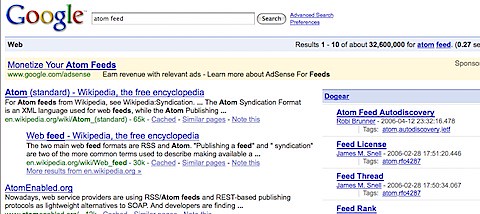
So here it is!!! I got some great feedback from users on my previous post which showed a demo of integrating Lotus Connections Dogear and Google search. If you want to get this running, follow this process:

200810072104.jpg

  1. Use Firefox (you are already using it, right ?)
  2. Install the Greasemonkey plugin (if you haven't already)
  3. Restart Firefox
  4. Install my Dogear script
    1. IBMers: Click this link to download and install the script
    2. Non-IBMers:
      1. Right-click this link and save it to your machine.
      2. Open the file with your favorite text editor
      3. Look for the these lines and put in the value for your deployment
        var profiles = 'http://profiles.tap.ibm.com/profiles';
        var dogear = 'http://dogear.tap.ibm.com';
      4. Save the file
      5. Open Firefox
      6. Go to File -> Open File...
      7. Browse to the file and it should be installed
  5. Restart Firefox
  6. Go to Google and do a search, any search!

Note to Hackers: you'll notice that I'm not using Atom, instead simple HTML. If you can modify this to parse the Atom feed and render the appropriate HTML, you get bonus points!